Black Friday

2× credits on credit packs and your first month. Yearly plans get 6 extra months of credits.

Ends Dec 1, 11:59 pm PTGet the deal

Video to PNG for a Numbered Image Sequence

Turn a recording into still images you can organize and reuse. Convert video to PNG, inspect the numbered files and download a ZIP. JPG and WebP are also available.

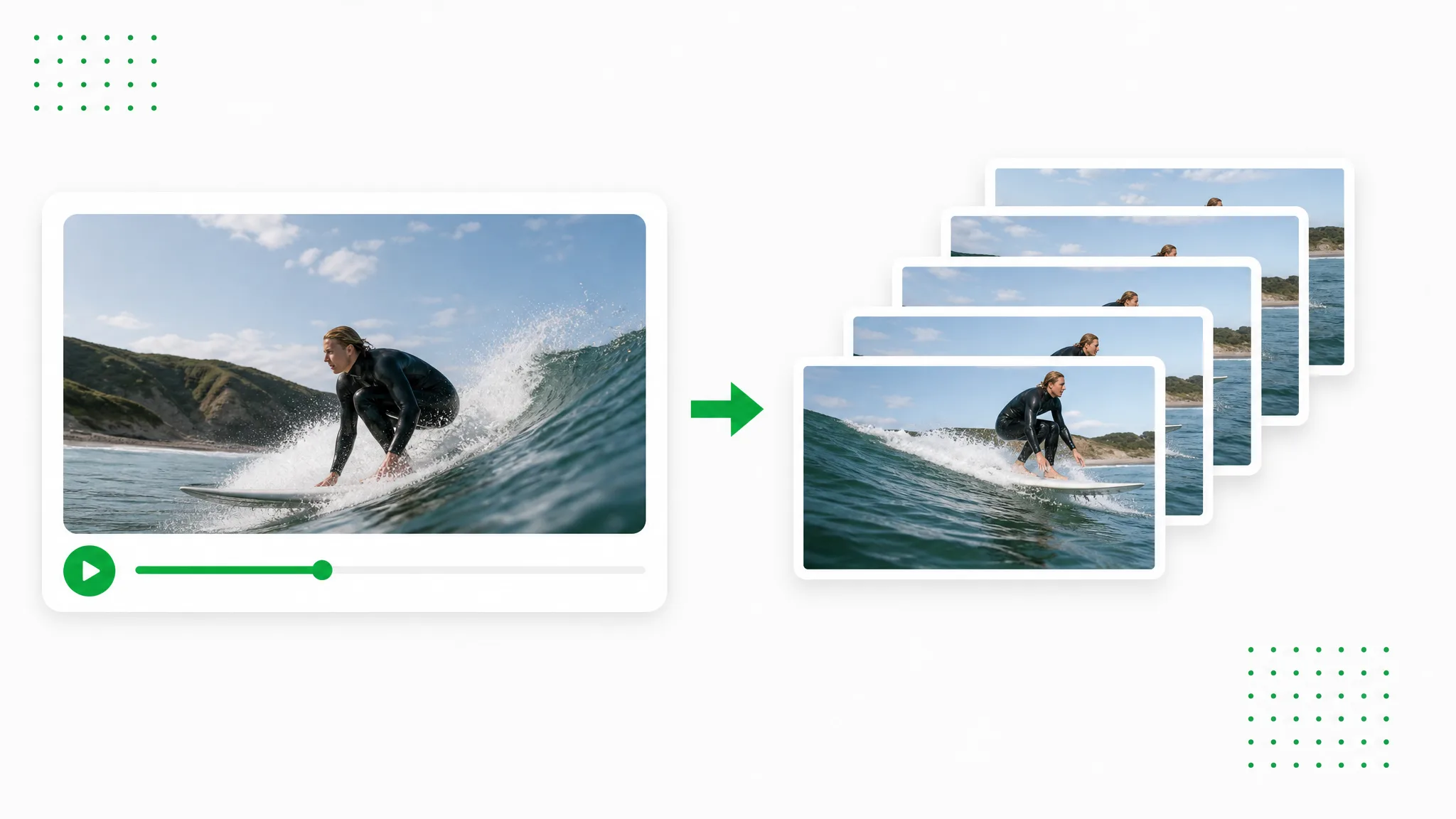
A surfer in a video player beside a stack of separate surfing stills.
or drop a file hereMP4, MOV, WebM
No video? Try one of these:
  • Local processing · No account · No credits
  • No watermark
  • Numbered images and ZIP download

Shared clip examples

Source Clips for Video to PNG

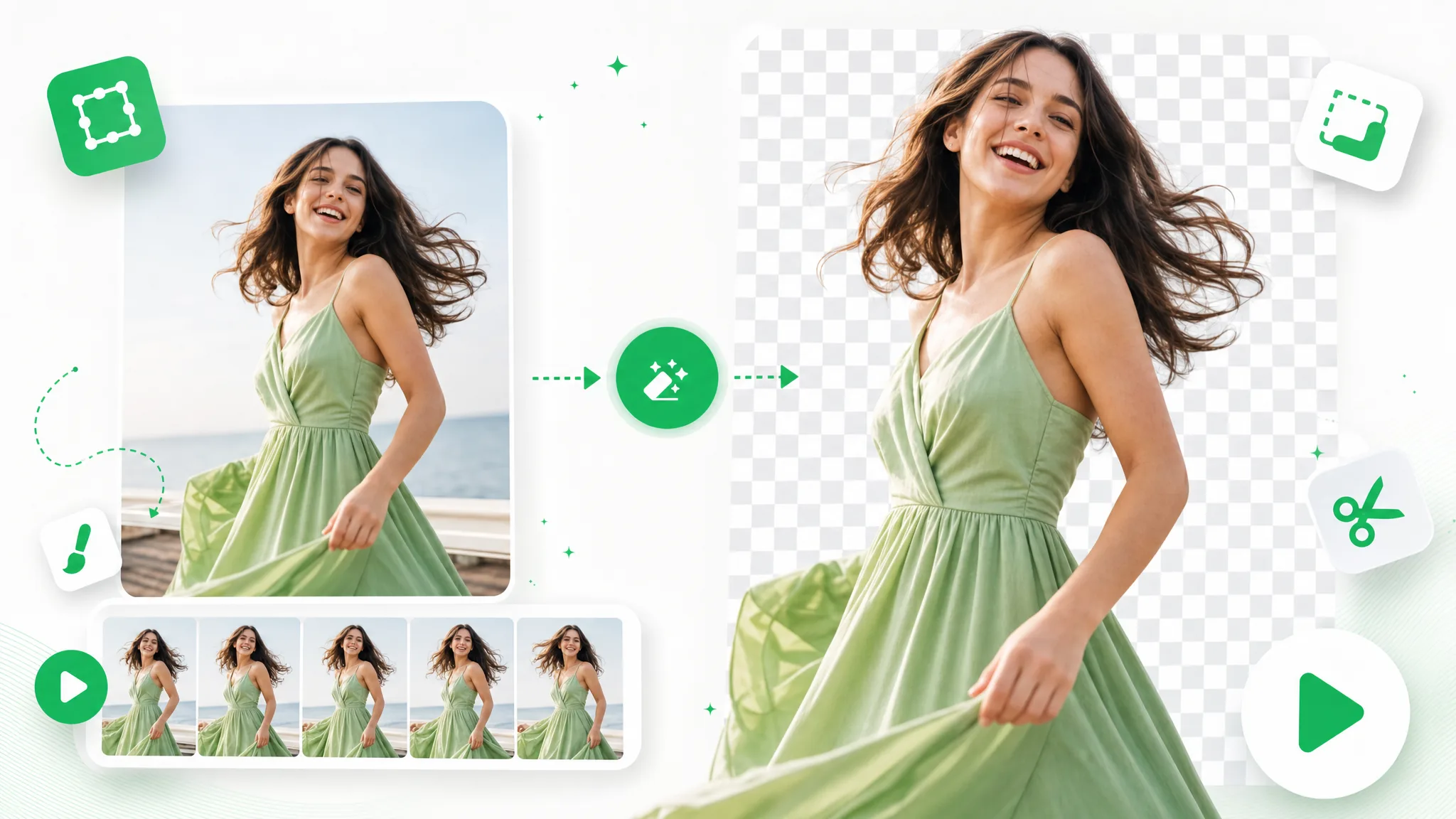
These clips illustrate the site’s background-removal workflow. With video to PNG, save sampled pictures with their original scene, ready to inspect as separate image files.

BeforeAfter

Creators & vloggers

A presenter prepared as a separate subject for another scene.

BeforeAfter

Sports & action

An action example showing the subject cut out on a transparent background.

BeforeAfter

3D character animation

An animated character shown separately from its original setting.

BeforeAfter

Game & VFX characters

An armored fantasy game character with a cape, cut out from its night-time landscape.

BeforeAfter

Social UGC & hauls

A creator and product example with the background removed.

BeforeAfter

AI & CGI footage

A sci-fi spaceship flying through storm clouds, cut out from the sky.

Shape the image set

Video to PNG Choices for a Useful Frame Set

Use video to PNG settings to choose the spacing and delivery of your image set. Start from a recording that contains the detail needed for the next project.

Choose how densely to sample

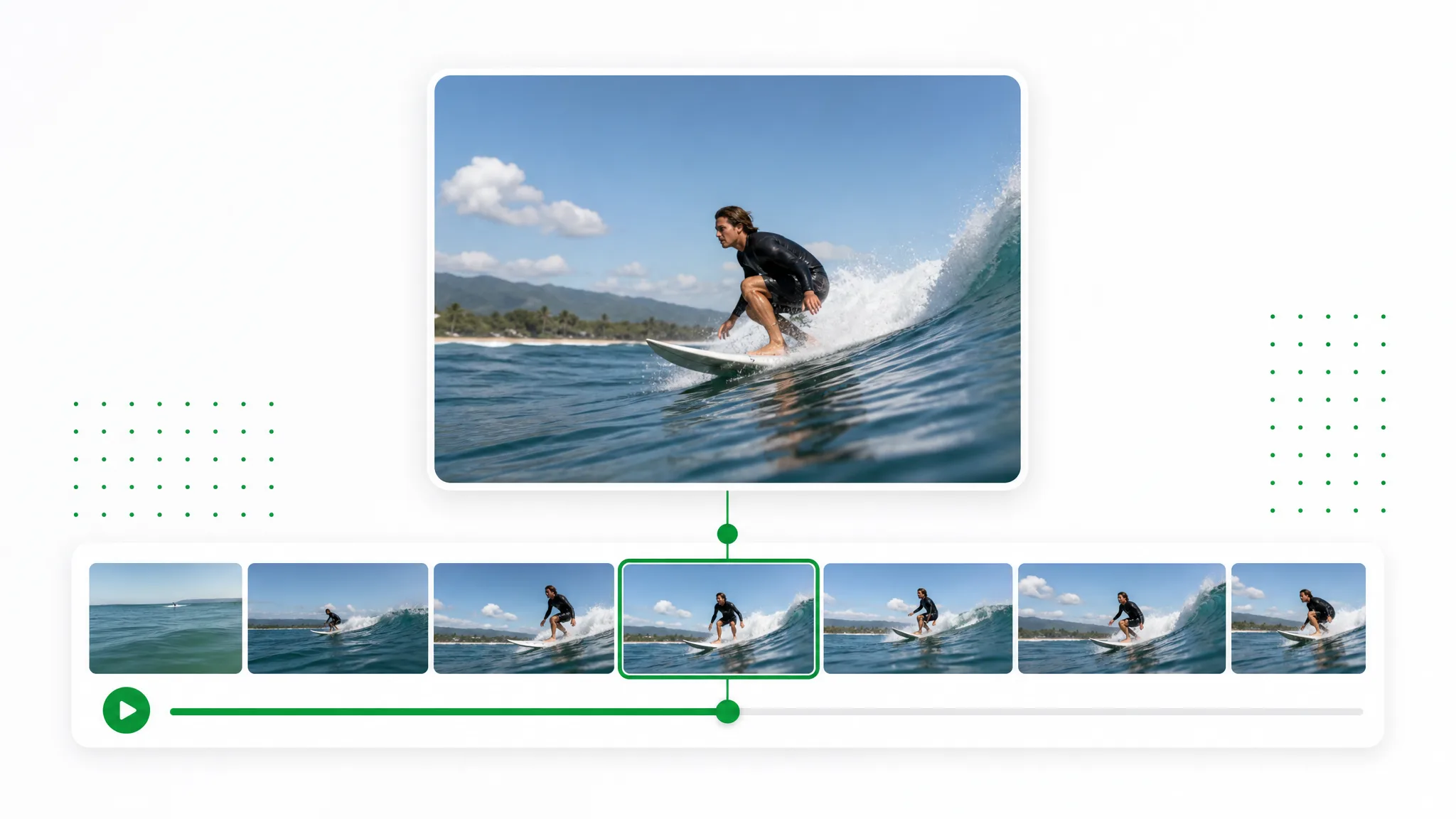
With video to PNG, you can produce a compact set of references or a more closely spaced series of images. Choose a time interval or every-nth-frame option for the task, then inspect the extracted moments. The illustrated filmstrip shows sampling choices; the output contains the frames that your selected settings collect from the recording.

Create a Transparent Clip
Travel footage above a filmstrip with images sampled at different intervals.

Keep the recorded scene as PNG

Convert MP4 to PNG when the next step needs ordinary image files rather than another video container. PNG encoding keeps the extracted picture without adding another lossy image-compression step. It does not restore missing source detail or make the background transparent. Review a full-size frame before deciding it is ready for the design.

Use Your Own Footage
Image format icons beside a selected frame from a video.

Extract the recording on your device

The video to PNG work takes place in the browser, using the source file selected from your device. There is no server upload for this extraction task. Keep the resulting images in your own files, and choose a manageable sampling density when a long or high-resolution recording would otherwise produce a large collection.

Cut Out Your Brand Video
A video in a browser beside a laptop and a privacy shield.

Download a numbered group together

For video to PNG delivery, use a ZIP to keep related PNG frames in one download rather than saving each picture separately. The file numbering helps maintain their order for review or a compatible sequence-import workflow. Open the downloaded collection and check the pictures you need before moving them into the final project folder.

Start With One Clip
A lakeside video above six numbered stills showing a hiker, woodland, a lake and a waterfall.

Source to numbered images

How to Convert Video to PNG Images

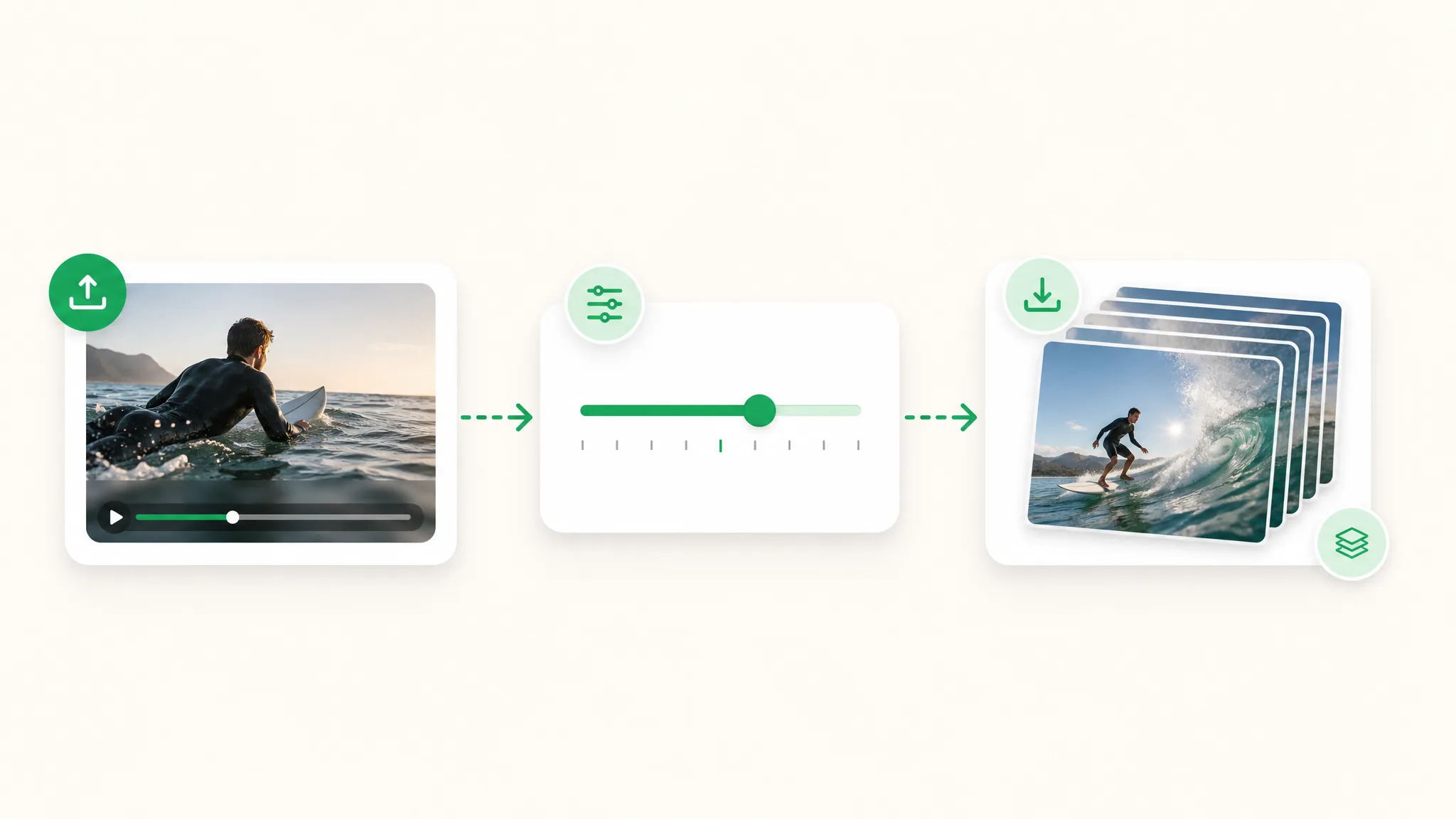
To convert video to PNG, choose a source and the sampling settings, then inspect the extracted files. Download the numbered group together for sequence work.

A source video, sampling controls and a numbered group of PNG images in three panels.
  1. 1

    Open a playable source video

    Choose an MP4, MOV or WebM saved on your device. This video to PNG workflow reads the recording in your browser. Check that the source plays correctly before extracting, particularly when a MOV recording uses a codec that needs a compatible decoder.

  2. 2

    Select PNG and the sampling option

    Keep PNG selected for the image sequence, then choose a time interval or every-nth-frame sampling. Start with the spacing needed for your project rather than collecting unnecessary images. The extraction keeps the original scene and does not remove the video background.

  3. 3

    Inspect frames and download the ZIP

    Review the extracted pictures and open useful frames at full size to check detail. For video to PNG delivery, download individual images or the numbered set as a ZIP. Keep the files in order when the next editing step needs an image sequence rather than separate reference pictures.

Choose the useful pictures

Put Video to PNG Images Into a Project

Pictures from video to PNG can support design, review and editing. Select frames that contribute useful information instead of using every extracted image automatically.

Designers choosing cover images

Video to PNG provides candidate pictures from a recording for a cover or social design. Compare the extracted moments and pick the clearest composition. Add the layout in your usual design tool; the grid illustration shows a selection task rather than an extra editor built into this page.

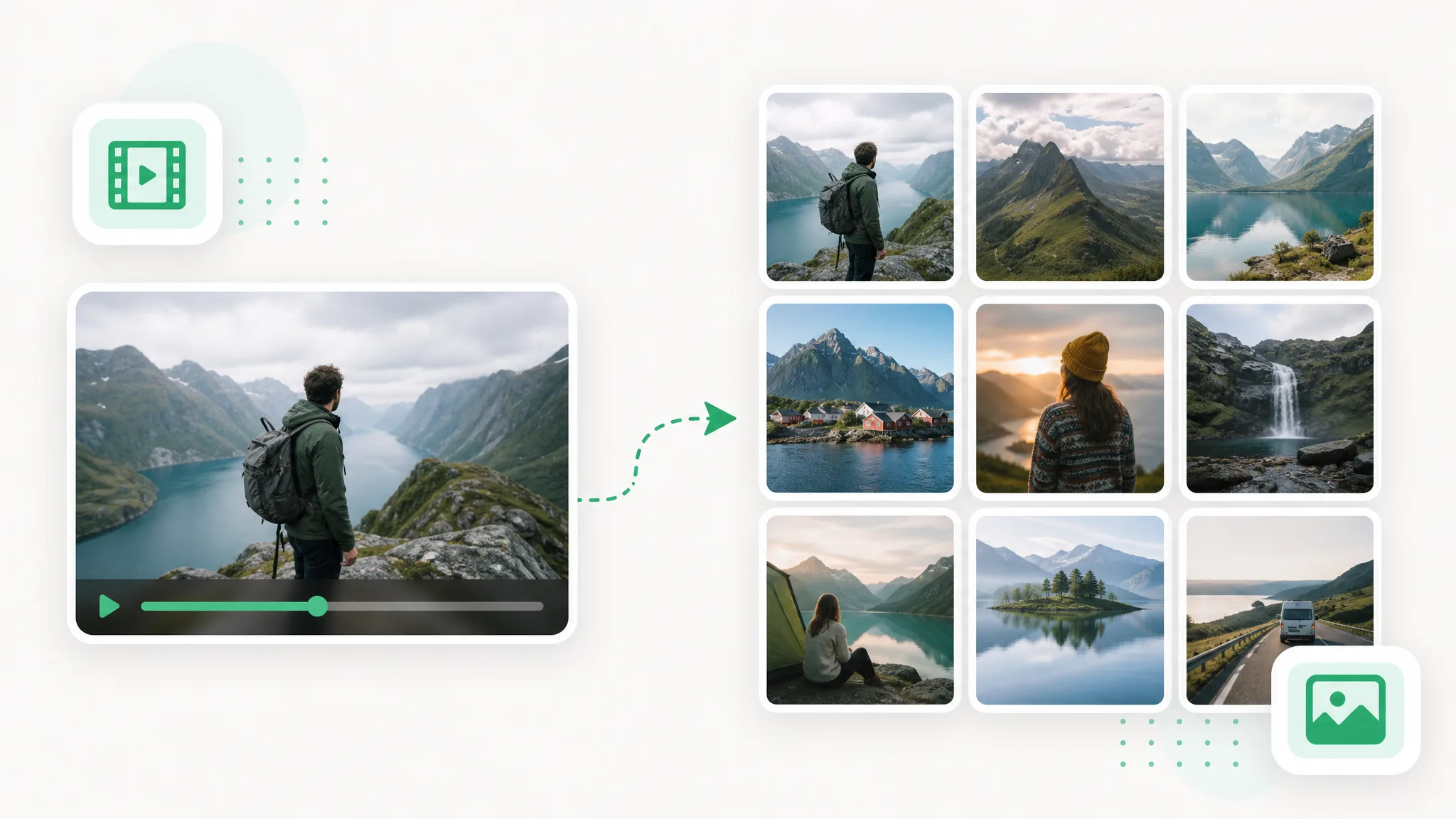
A grid of candidate cover pictures extracted from a recording.

Teams assembling visual references

A team can use video to PNG with a MOV recording to collect relevant scenes from its own footage. Keep the numbered files together, then choose a smaller set for a shared visual board. The sequence preserves the source scene, while the board and its explanations belong in the next collaboration tool.

A collection of outdoor stills arranged for a visual reference board.

Coaches discussing recorded movement

Use video to PNG to collect spaced views of an action for discussion. Review the source alongside the stills so the missing movement between samples remains clear. Select pictures that support the explanation rather than treating the image set as automatic measurement or a motion-analysis result.

Consecutive running positions shown as separate recorded stills.

Editors organizing an image sequence

Convert MP4 to PNG when a compatible editing project needs numbered images as input. Keep the order intact and decide the import frame rate in that editor. Review the sampled frames before using them as a moving sequence, especially when the extraction interval leaves gaps between moments.

Numbered image frames arranged together for an editing project.

Creator stories & examples

Video to PNG Project Stories

“For a cooking-step illustration, I used video to PNG to gather references around each preparation step. I chose a wider sampling interval first, then inspected the useful frames. Keeping the numbered files in a ZIP made it easier to pick the hand positions I wanted to draw beside the instructions.”
Milo AshfordIllustrator

Understand the image sequence

Video to PNG Questions About the Output

Check what video to PNG saves, how sampling changes the collection and how ZIP delivery works. Ordinary extracted frames keep the recorded scene.

Video to PNG conversion creates separate still-image files from sampled moments in a recording. This page preserves the original scene, including its background. The numbered PNG files can be downloaded together in a ZIP or selected individually.

Reviewed by RemoveVideoBG TeamUpdated

Convert Video to PNG and Keep the Frames Together

Convert video to PNG with spacing that suits your project, then inspect the pictures. Download the numbered files in one ZIP and take useful frames into the next design or edit.

Create Your PNG Sequence