Black Friday

2× credits on credit packs and your first month. Yearly plans get 6 extra months of credits.

Ends Dec 1, 11:59 pm PTGet the deal

Unscreen Alternative for Your Next Video Cutout

Bring your original recording and give the subject another setting. This Unscreen alternative prepares transparent WebM or composed MOV and MP4 for your next edit.

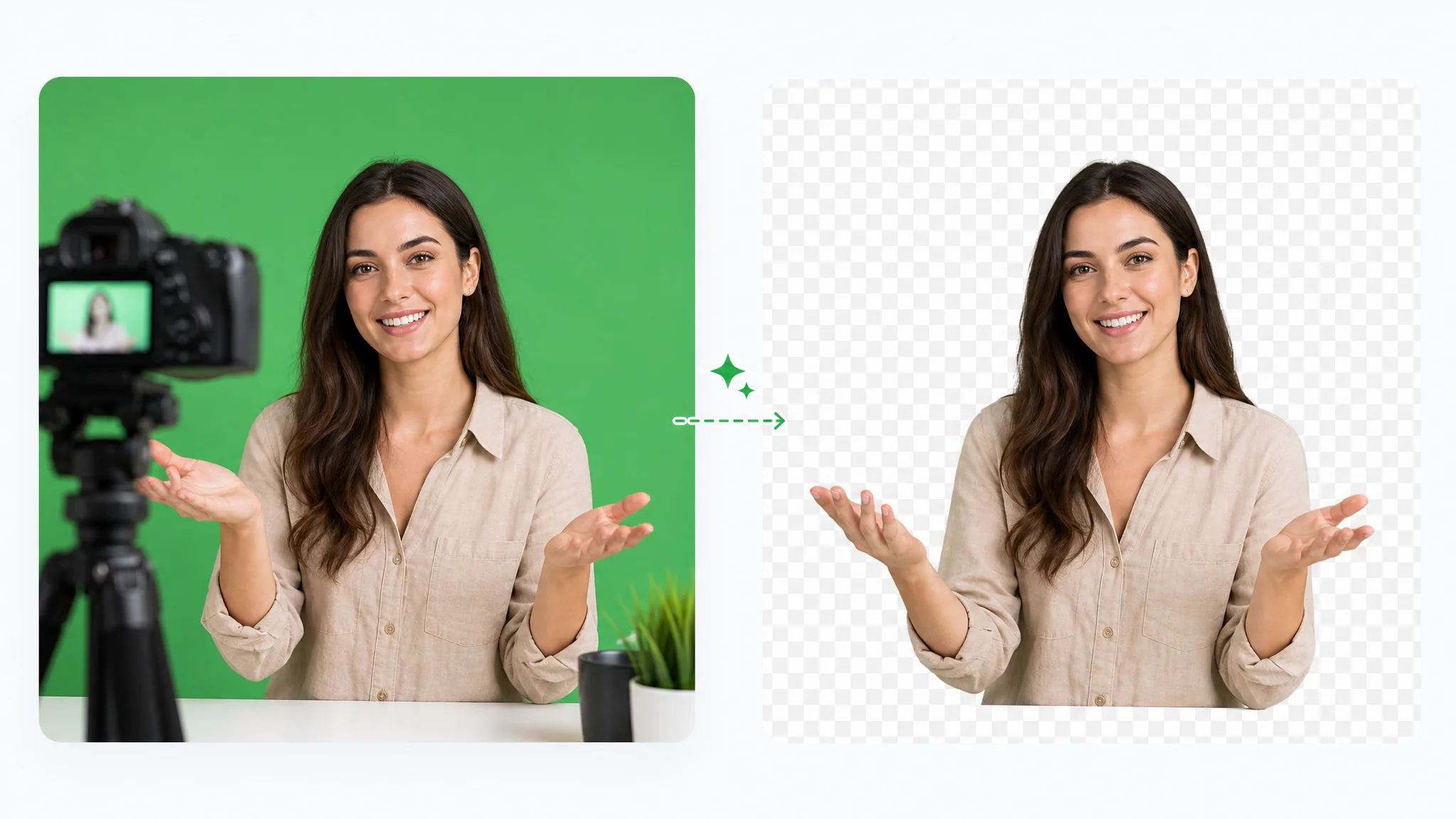
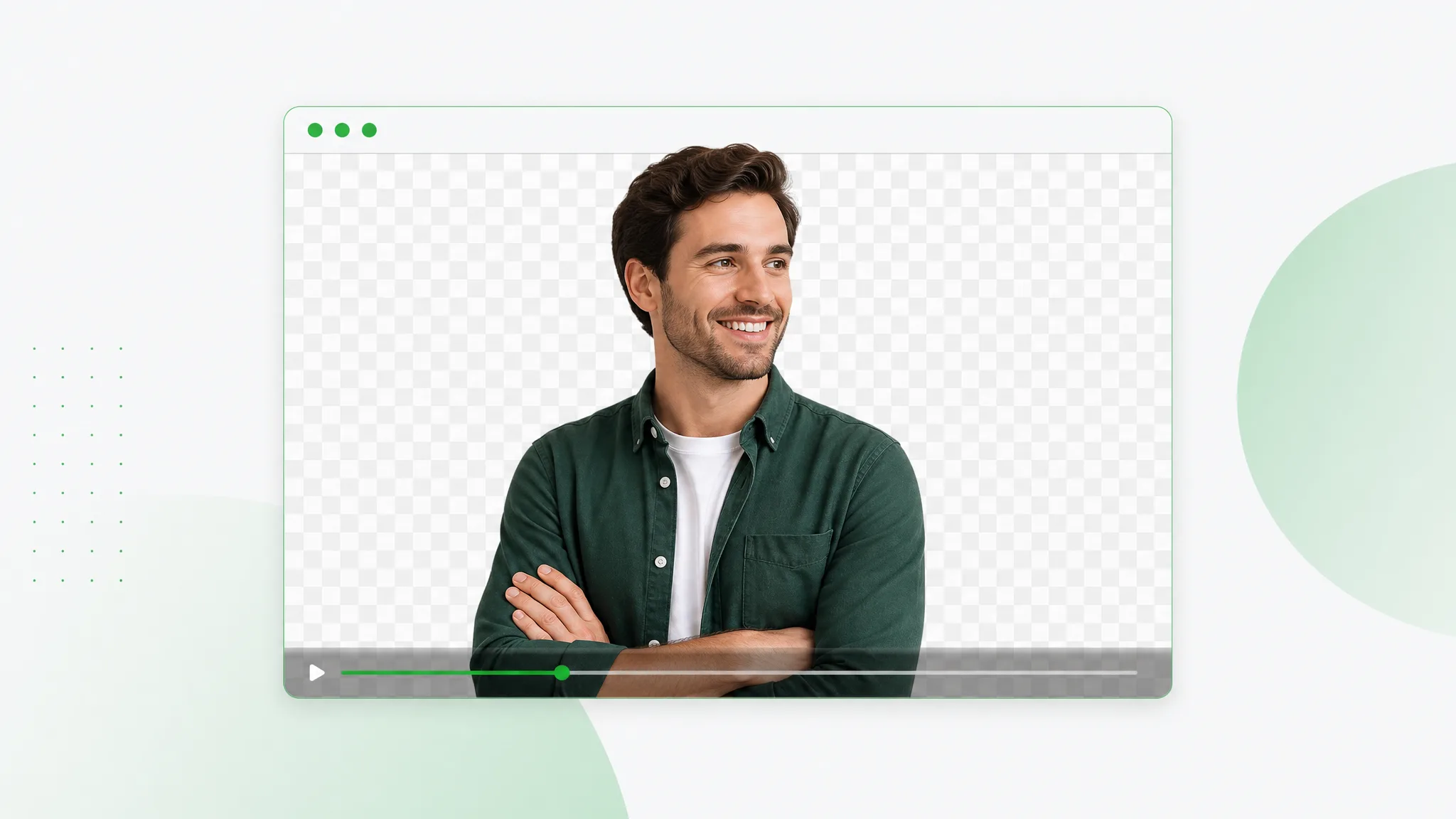
A presenter separated from the recorded room and shown over a checkerboard.
or drop a file hereMP4, MOV, WebM · Max 180s · up to 4K · 100MB
No video? Try one of these:
  • Preview your result before download
  • No watermark
  • Transparent or composed video

Keep the subject, change the setting

An Unscreen Alternative for a New Composition

The examples illustrate a subject separated from its original surroundings. Use your own recording to check the edges and movement that matter for the next composition.

BeforeAfter

Creators & vloggers

A presenter prepared as a separate subject for another scene.

BeforeAfter

Sports & action

An action example showing the subject cut out on a transparent background.

BeforeAfter

3D character animation

An animated character shown separately from its original setting.

BeforeAfter

Game & VFX characters

An armored fantasy game character with a cape, cut out from its night-time landscape.

BeforeAfter

Social UGC & hauls

A creator and product example with the background removed.

BeforeAfter

AI & CGI footage

A sci-fi spaceship flying through storm clouds, cut out from the sky.

Continue the editing task

Choose an Unscreen Alternative Around the Result You Need

Using an Unscreen alternative, you can prepare a saved recording for a new composition. Choose the subject, output and next editing step around the material you already have.

Separate a product presentation

An Unscreen alternative can help give an existing presentation another setting. Start with the original recording, process the subject and inspect the outline around hands and the featured object. Use the downloaded result in a new composition while keeping a copy of the source for future edits and any separate audio work.

Create a Transparent Clip
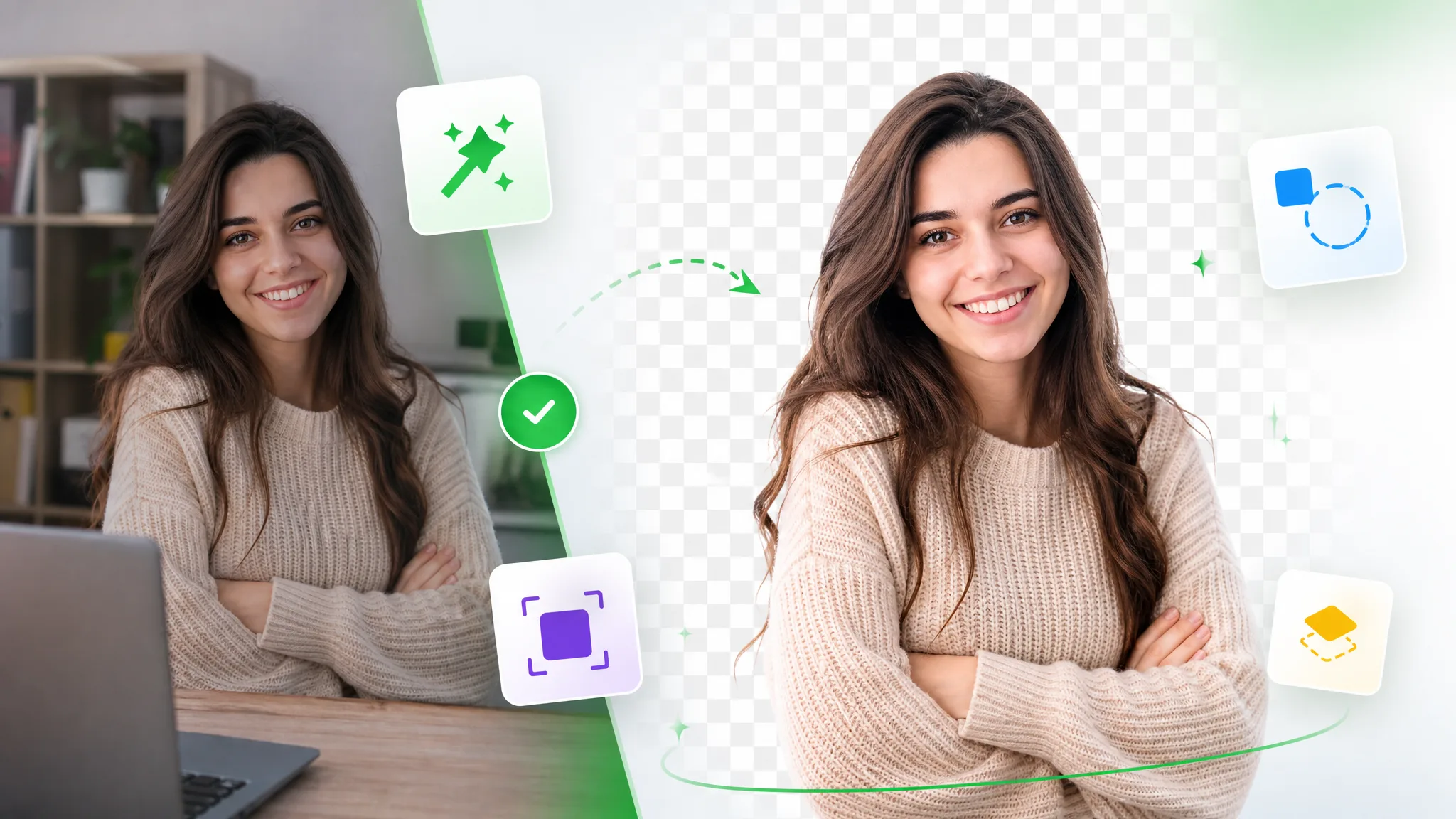
A woman holding a product, shown before and after the surrounding scene is removed.

Decide between transparent and composed

Transparent WebM keeps the background choice open for a compatible next step. A composed output places the subject against an available solid color or image before download. This Unscreen alternative presents those choices through the selected tier, so confirm the format you need instead of treating every video container as transparent.

Use Your Own Footage
A runner cut out from a recording and placed in another scene.

Bring a presenter into another setting

Reuse a recorded introduction when the surrounding room no longer suits the project. A different background can make the same presenter fit a lesson, announcement or visual explanation. Review the processed edges against the new setting; the illustration shows the composition idea rather than a guarantee for every recording.

Cut Out Your Brand Video
A presenter moved from the recorded room into a different setting.

Inspect the whole moving result

Judge an Unscreen alternative with the footage you actually plan to use. Play the result rather than checking only one still, and look at hair, hands and moments when the subject crosses a busy background. Download the file after reviewing it, then check playback and sound in the destination project.

Start With One Clip
An interview subject shown against an alternative background.

Source, presentation, review

How to Use This Unscreen Alternative

To use an Unscreen alternative, start with the source recording, choose an output and inspect the result. Keep the downloaded file with the rest of your project assets.

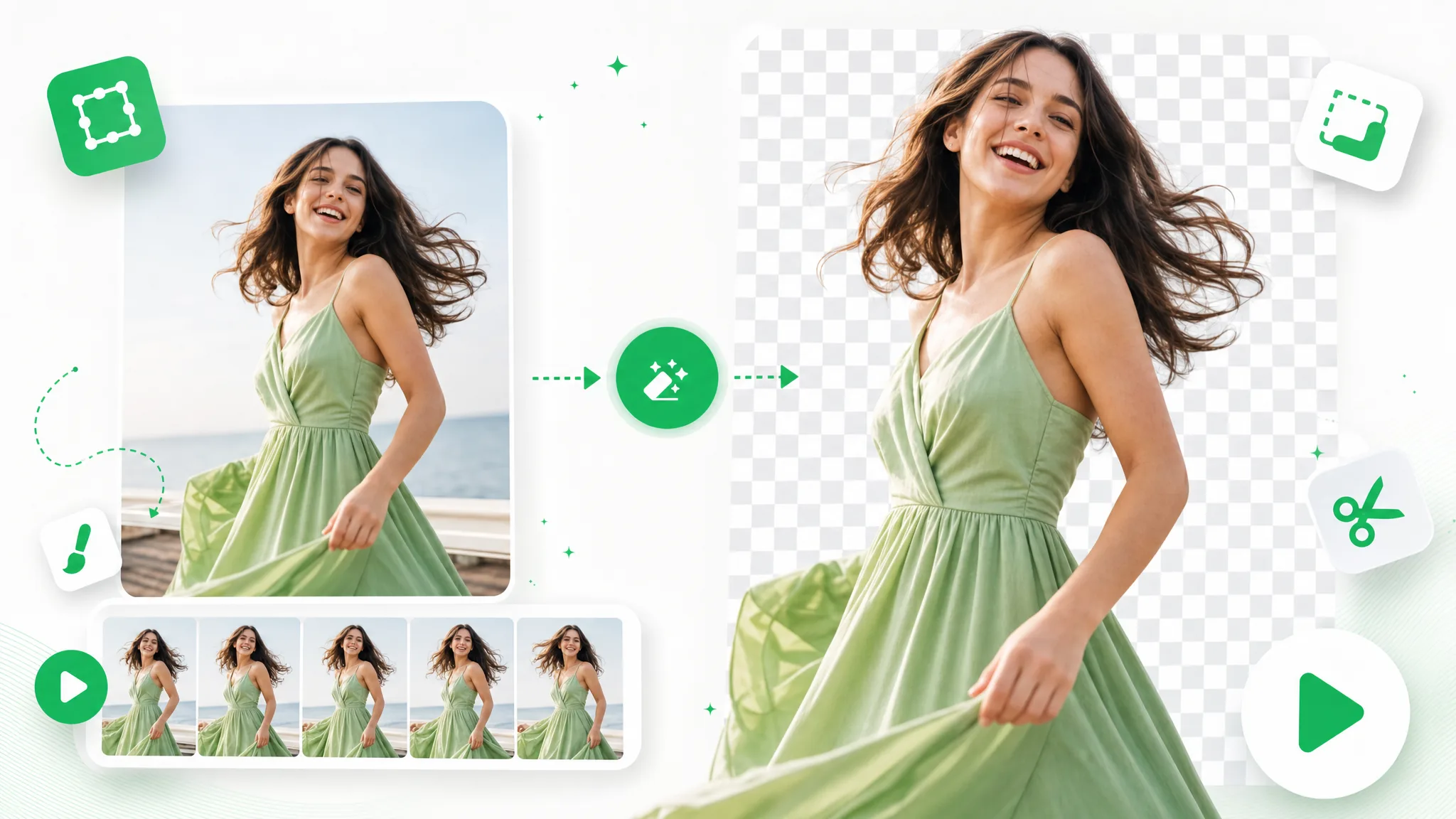
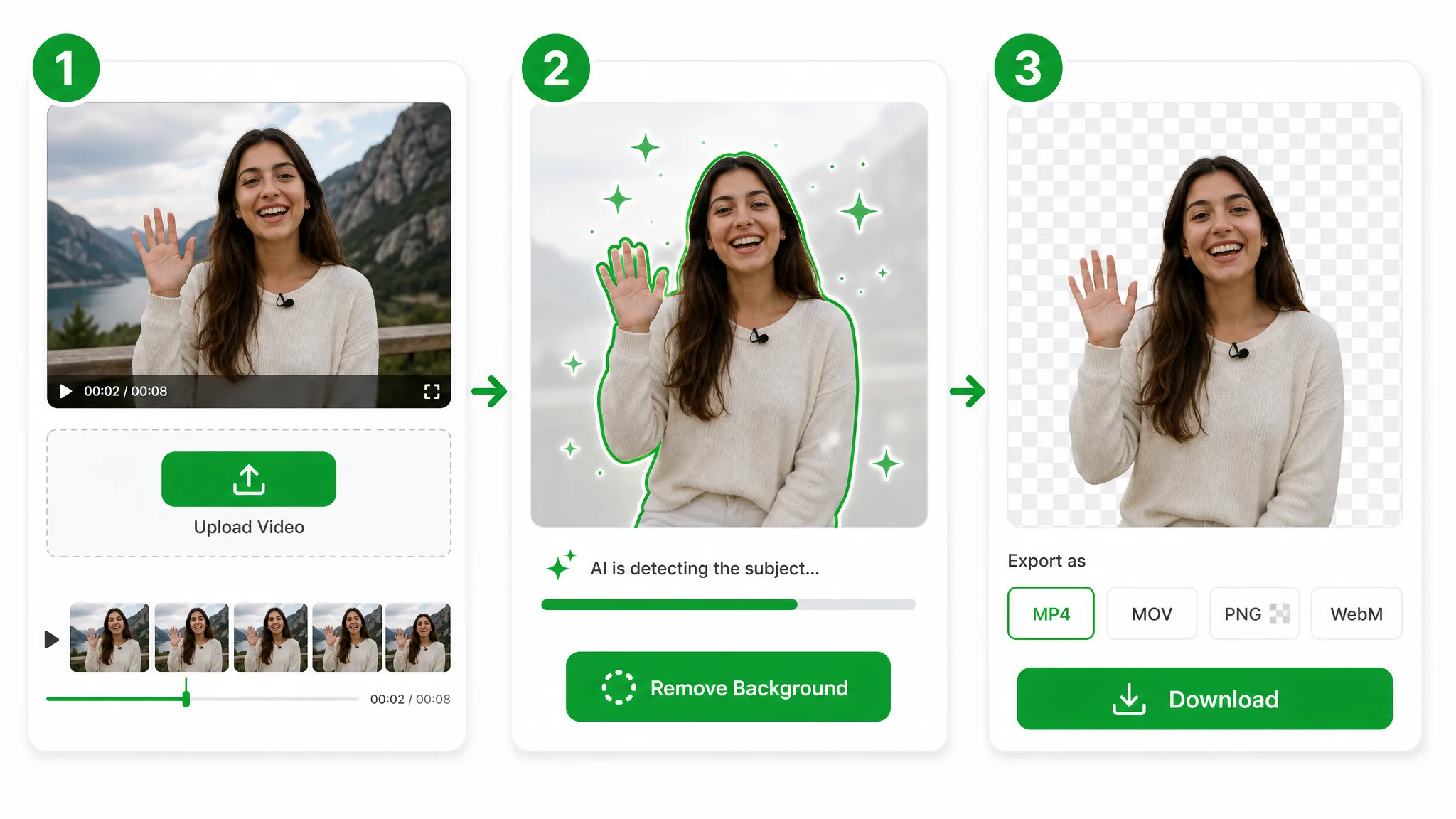
Upload, background removal and download panels in a general video cutout illustration.
  1. 1

    Choose the original recording

    Start with a source video saved on your device rather than an old project link. Upload a supported clip and select the processing tier that fits its length and resolution. This Unscreen alternative works from the video file you provide.

  2. 2

    Choose the background and output

    Select transparent WebM for a subject you plan to place over another scene. If you need a finished solid-color or image background, choose an available composed output. Check the selected tier and format before starting the background-removal step.

  3. 3

    Inspect the cutout and download

    After using an Unscreen alternative, play the processed result and examine hair, moving hands and edges against the intended setting. Download the supported output and test it in the project where it will appear. Check the sound separately because audio availability depends on the selected tier.

A new use for the source

Projects That Can Use an Unscreen Alternative

With an Unscreen alternative, give an existing presenter or demonstration another setting. These project examples show where a newly prepared subject can be useful.

Product demonstrations

A shop owner can use an Unscreen alternative to separate a presenter and product from a cluttered room. Prepare the result for a cleaner composition, then add the remaining product information in the next editor. Check small object edges and hands before choosing the finished version.

A product presenter arranged over a new composition.

Social introductions

A creator can reuse an introduction recorded outside when a new post needs a different setting. The cutout becomes material for the next composition rather than a complete social edit. Add captions, music and other shots separately, using an output the editing workflow can import.

A creator recording on a city street, prepared for another setting.

Gaming commentary

An Unscreen alternative can prepare a commentator recording for placement over compatible game footage. Choose the transparent output for that next step and inspect the headset and chair outline. Plan audio separately when using a tier that exports without an audio track.

A man in headphones at a microphone, shown in his room and cut out on a checkerboard.

Lessons and explainers

With an Unscreen alternative, a teacher can give a saved explanation another setting without recording the whole introduction again. Prepare the presenter, check the cutout and arrange the result with diagrams or lesson content in a compatible editor. Keep the original recording when the final project also needs its sound.

A bearded man in a green shirt, shown in front of bookshelves and against a light background.

Creator stories & examples

Unscreen Alternative Project Stories

“My product introduction was already recorded when I wanted a quieter background for the next announcement. An Unscreen alternative let me start from the saved source rather than an old project link. I checked the outline around the handbag and used the prepared subject in the revised composition.”
Mara EllisonIndependent Filmmaker

Choose with the facts

Unscreen Alternative Questions Before You Upload

Compare an Unscreen alternative through service availability, outputs and processing specifications. These answers explain rebuilding from a saved recording and choosing the next step.

An Unscreen alternative is another tool for removing a video's background and preparing the subject for reuse. This page starts with your source recording and offers supported transparent or composed outputs, depending on the processing tier you choose.

Continue the task with files you still hold

What you needRemoveVideoBGUnscreen.com
Service availabilityStart a new background-removal job with an account and credits.The standalone service is closed according to Canva's official help page.
Source filesUpload a supported original recording saved on your device.Keep any original recordings and exports you previously saved.
Next editing stepChoose a supported transparent WebM or an opaque composed output for the next project.For this replacement workflow, start again from an original video file you still hold.

Reviewed by RemoveVideoBG TeamUpdated

Try an Unscreen Alternative With Your Source Clip

Try an Unscreen alternative with the recording you want to reuse. Choose the output for your next composition, review the subject in motion and check the downloaded file in that destination.

Prepare Your Video Cutout