Black Friday

2× credits on credit packs and your first month. Yearly plans get 6 extra months of credits.

Ends Dec 1, 11:59 pm PTGet the deal

WebM Transparent Background for Your Next Composition

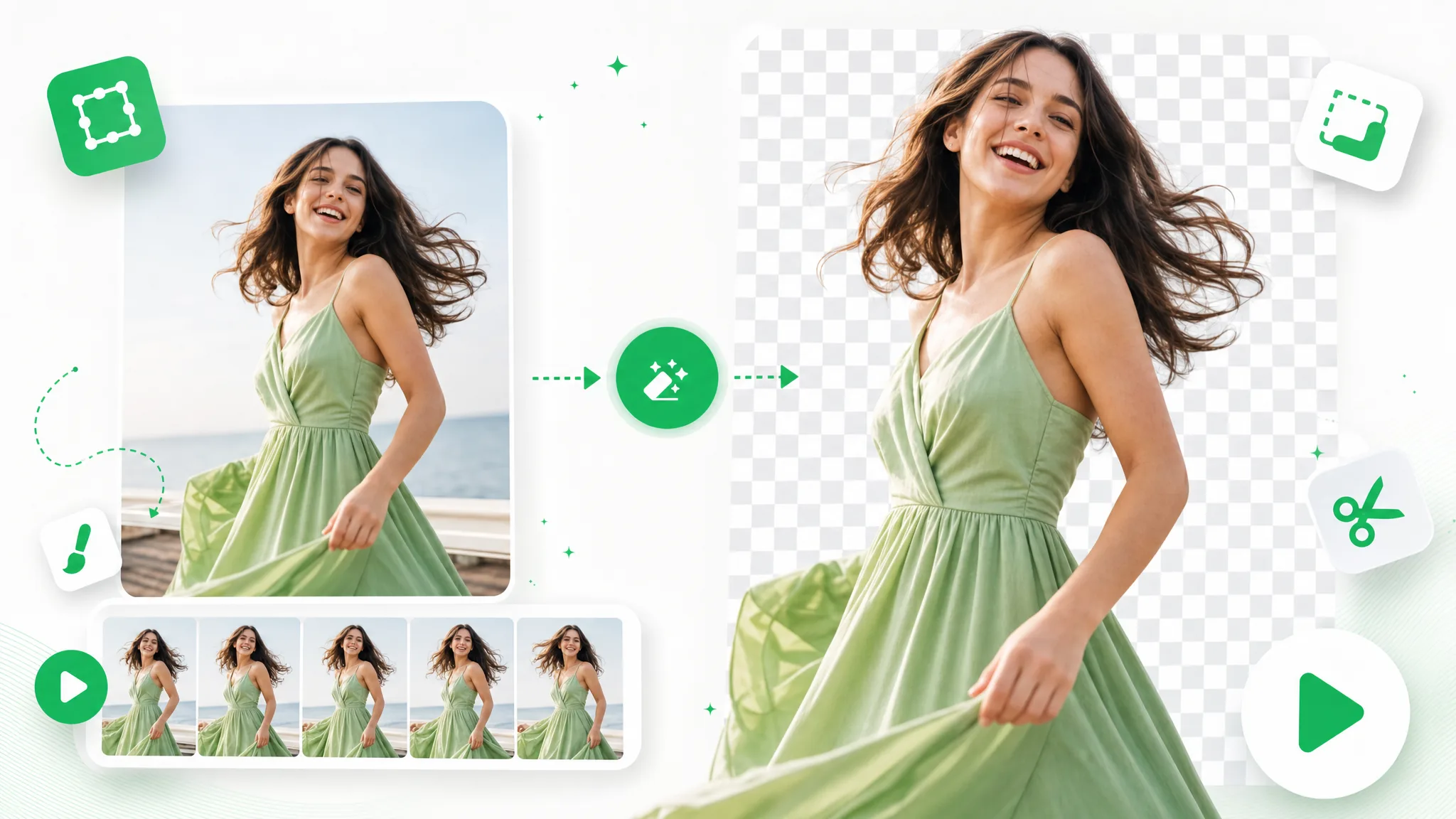
Separate a presenter, product or character from the recorded setting. Create a WebM transparent background and bring the subject into a compatible website or video composition.

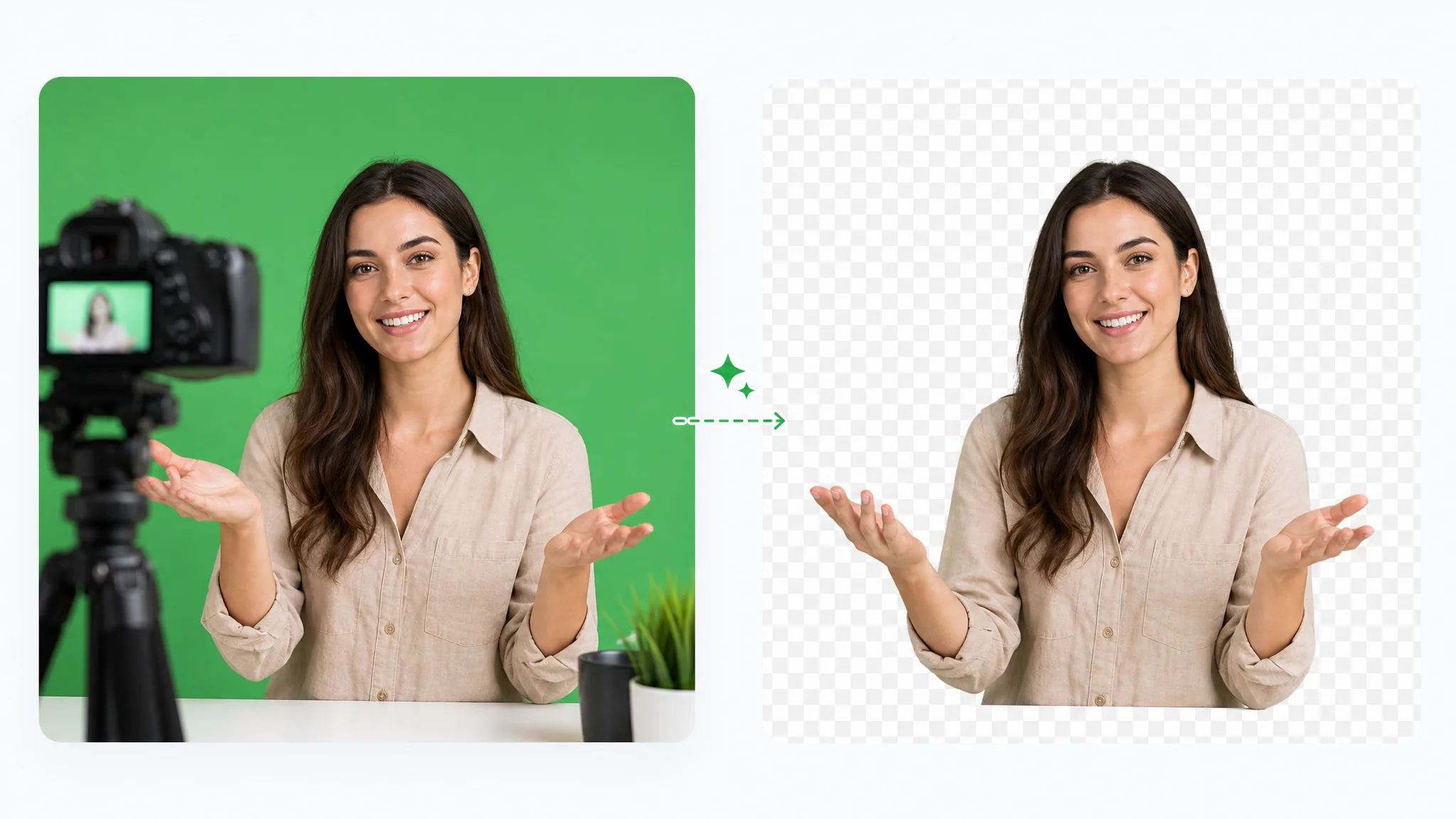
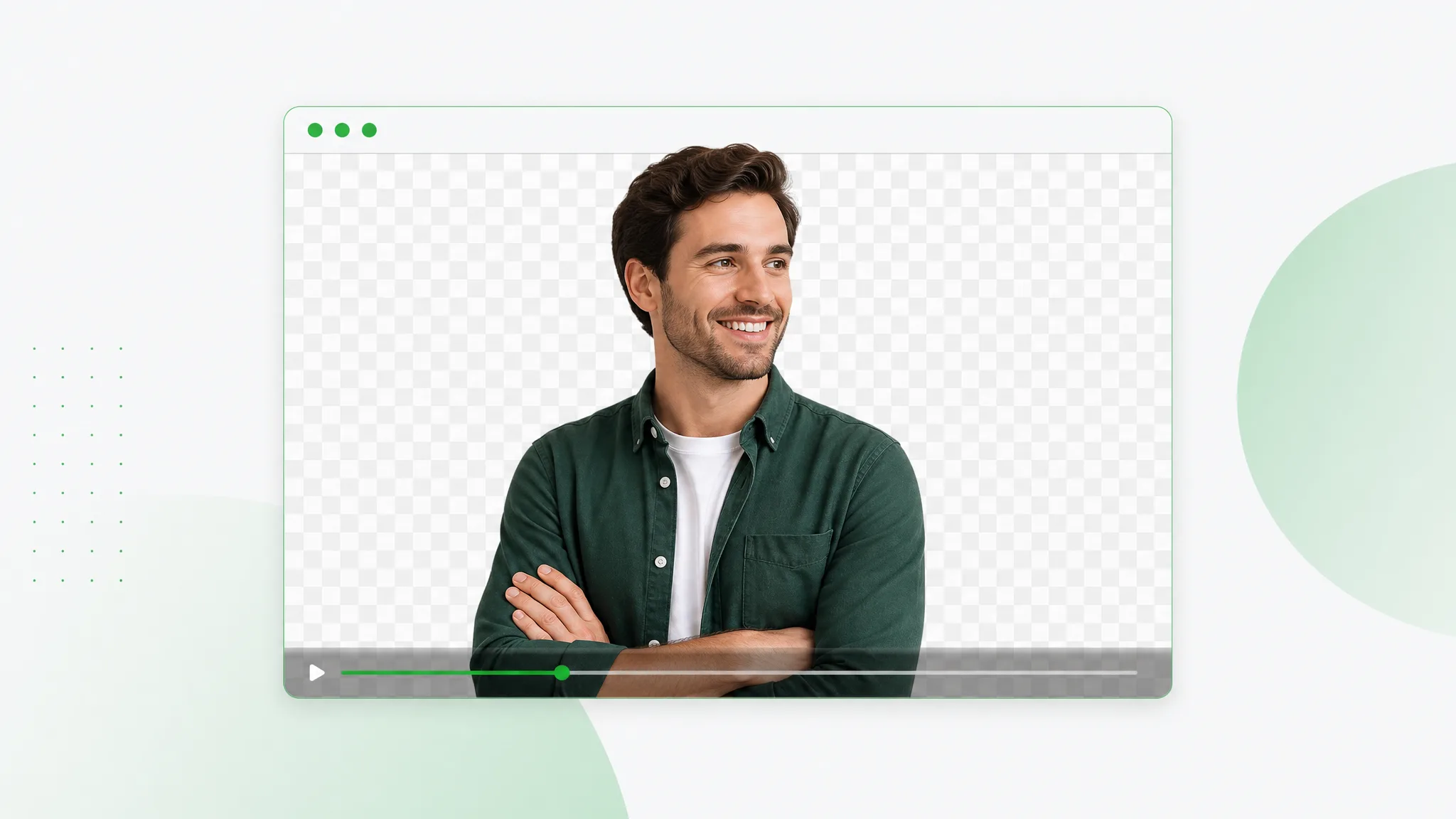
A presenter cut out from the recorded scene over a transparent checkerboard.
or drop a file hereMP4, MOV, WebM · Max 180s · up to 4K · 100MB
No video? Try one of these:
  • Preview your result before download
  • No watermark
  • WebM with an alpha channel

A subject layer for another scene

See What a WebM Transparent Background Makes Possible

The illustrations show the subject separated from its recorded scene and placed in another composition. Inspect your own processed clip against the setting where it will appear.

BeforeAfter

Creators & vloggers

A presenter prepared as a separate subject for another scene.

BeforeAfter

Sports & action

An action example showing the subject cut out on a transparent background.

BeforeAfter

3D character animation

An animated character shown separately from its original setting.

BeforeAfter

Game & VFX characters

An armored fantasy game character with a cape, cut out from its night-time landscape.

BeforeAfter

Social UGC & hauls

A creator and product example with the background removed.

BeforeAfter

AI & CGI footage

A sci-fi spaceship flying through storm clouds, cut out from the sky.

Prepare the reusable layer

Plan a WebM Transparent Background Around the Next Edit

With a WebM transparent background, keep the subject ready for another scene. Inspect moving edges and test playback in the destination before using the downloaded layer.

Separate the subject from the room

Create a WebM transparent background when the presenter or featured object needs another setting. The alpha channel stores which areas should reveal the scene underneath. Review the edge around hands, hair and any object the subject holds, then use the file in a destination that can display that transparency.

Create a Transparent Clip
A woman holding a product with the room removed around her.

Try the layer over contrasting scenes

Using a WebM transparent background gives a compatible composition another way to place the same performance. Test the result against both light and dark colors so fine edges are easier to inspect. The illustrations show possible uses of a separated subject. Review the motion and outline in your own processed recording against the colors where it will appear.

Use Your Own Footage
A separated runner placed over a contrasting outdoor scene.

Prepare a presenter for a new project

Use a WebM with alpha channel to carry the visual subject into a website or another compatible project. Keep titles, music and other scene elements in that destination workflow. The downloaded layer is material for the next edit rather than a complete lesson, advertisement or finished social video with every element included.

Cut Out Your Brand Video
A presenter cut out from a room and placed in a new setting.

Check the moving result before handoff

Before handing a WebM transparent background to another editor, include the intended scene and the original recording with the downloaded asset. Play that same file in the destination project and confirm its appearance and sound expectations. A short handoff check helps the next person arrange the subject with the surrounding design.

Start With One Clip
An interview subject against a replacement scene.

Record, separate, test

How to Create a WebM Transparent Background

To create a WebM transparent background, choose the recording, remove the surrounding scene and inspect the downloaded file. Test that file in the intended composition.

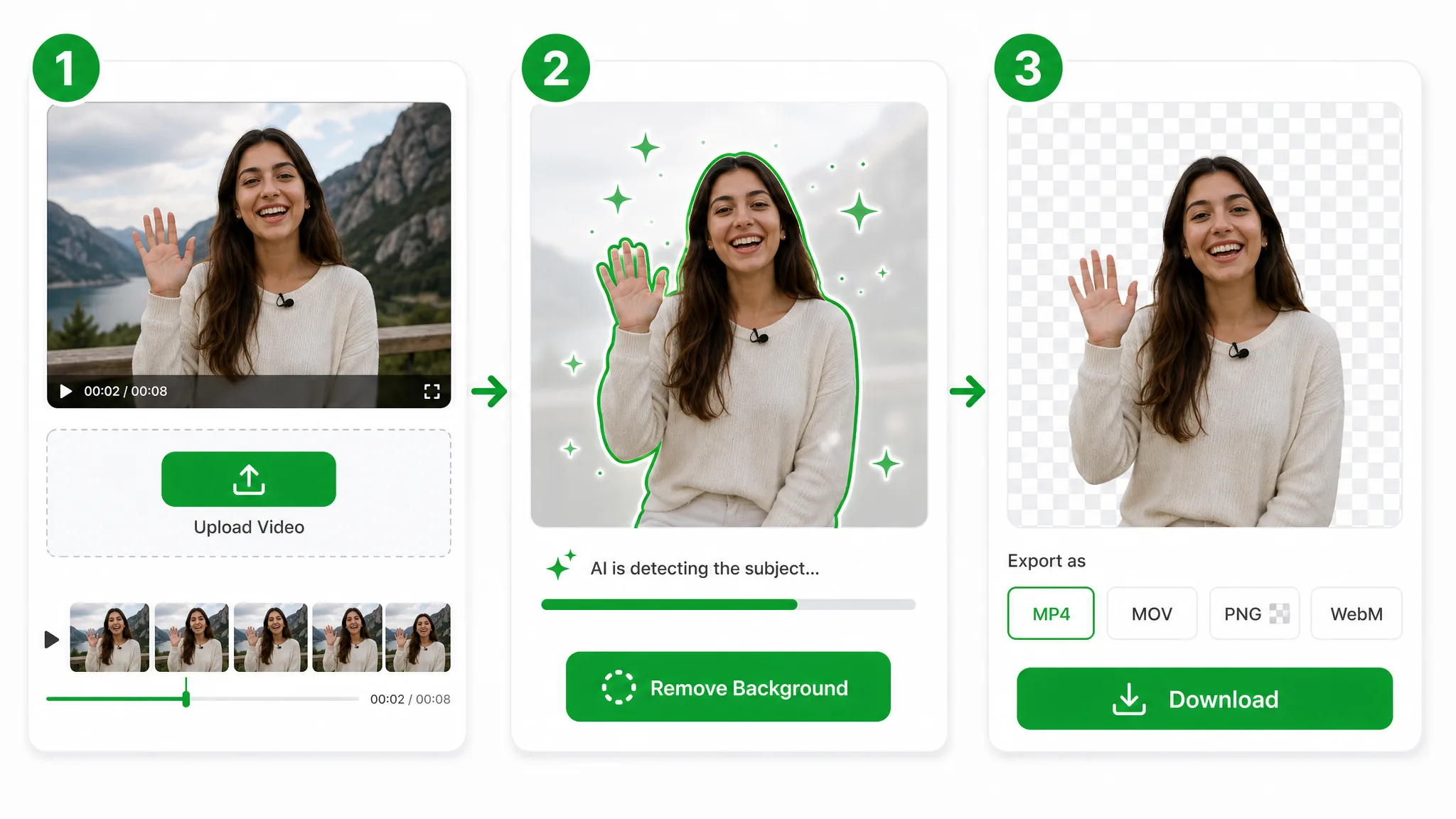
Upload, subject cutout and download panels in a general background-removal illustration.
  1. 1

    Choose the source recording

    Upload a supported recording and choose the tier for its duration and resolution. Use footage where the subject is distinguishable from its surroundings. Creating a WebM transparent background removes the scene behind the subject rather than merely changing the file extension.

  2. 2

    Process the subject with transparency

    For a WebM transparent background, keep transparency and WebM output selected, then start processing. The illustration shows a general background-removal workflow; this page delivers WebM with an alpha channel. Prepare any captions or additional scene elements in the next composition rather than adding them here.

  3. 3

    Check the edges in the destination

    Preview the result, download the WebM and test it over the background where it will appear. Inspect moving edges and hair against contrasting colors. Check the actual file in the intended browser or editor, and keep your source audio for a separate edit when needed.

Give the layer a destination

Where a WebM Transparent Background Fits the Project

Choose a WebM transparent background for projects that support a moving alpha layer. Test the destination before building the final design around the file.

Product demonstrations on a website

A WebM transparent background can help a product presenter sit over a compatible page design. Prepare the subject, test the actual asset against the page colors and check moving edges. Add the surrounding text and layout in the website, keeping the video layer separate from those elements.


A woman holding a green handbag in a shop, then shown against a pale background.

Creator introductions

For a creator, a WebM transparent background can supply a creator layer for a new scene in a compatible composition. Start from a recording with a clear subject and review the processed motion. Prepare music, captions and other finishing elements in the next workflow rather than expecting them in the cutout file.

A woman holding iced coffee on a city street, then cut out on a checkerboard.

Gaming commentary layers

Use a WebM with alpha channel to arrange a commentator over compatible footage or graphics. Check the headset, chair and moving hands against the intended background. Plan the sound separately when the chosen processing tier exports no audio, then test the composed result before sharing it.

A man wearing headphones at a microphone, shown in his room and on a checkerboard.

Lessons with a presenter overlay

A WebM transparent background can let a teacher appear beside diagrams in a compatible lesson project. Keep the presenter and lesson graphics as separate materials for composition. Review the subject against the diagram colors and retain the original recording when the explanation also needs its audio.

A bearded man gesturing in a green shirt, shown in his room and as a separate subject.

Creator stories & examples

WebM Transparent Background Project Stories

“My product page needed the presenter to sit beside the specifications rather than inside a rectangle of the original room. A transparent WebM background gave the design that option in a compatible browser. I tested the downloaded clip over the page colors and checked the hands around the product.”
Milo AnselWeb Designer

Check the actual exported file

WebM Transparent Background Questions

Check how a WebM transparent background stores alpha, how playback tests work and how processing handles sound. These answers separate the exported file from its player backdrop.

A WebM transparent background uses an alpha channel to store transparency around the visible subject. The result can sit over another scene in a compatible player or editor. A WebM extension alone does not prove that a file contains alpha.

Reviewed by RemoveVideoBG TeamUpdated

Create a WebM Transparent Background for Your Scene

Prepare your WebM transparent background from your source clip and inspect its moving edges. Download the file, then test it in the compatible website or editing project where the layer will be used.

Prepare Your Transparent WebM