Black Friday

2× credits on credit packs and your first month. Yearly plans get 6 extra months of credits.

Ends Dec 1, 11:59 pm PTGet the deal

Blur Video Background in Clips You Already Recorded

Upload a recording, choose how soft the room should look, and AI keeps the person or product sharp. Download a blurred MP4 or a transparent WebM and blur video background clutter without a reshoot.

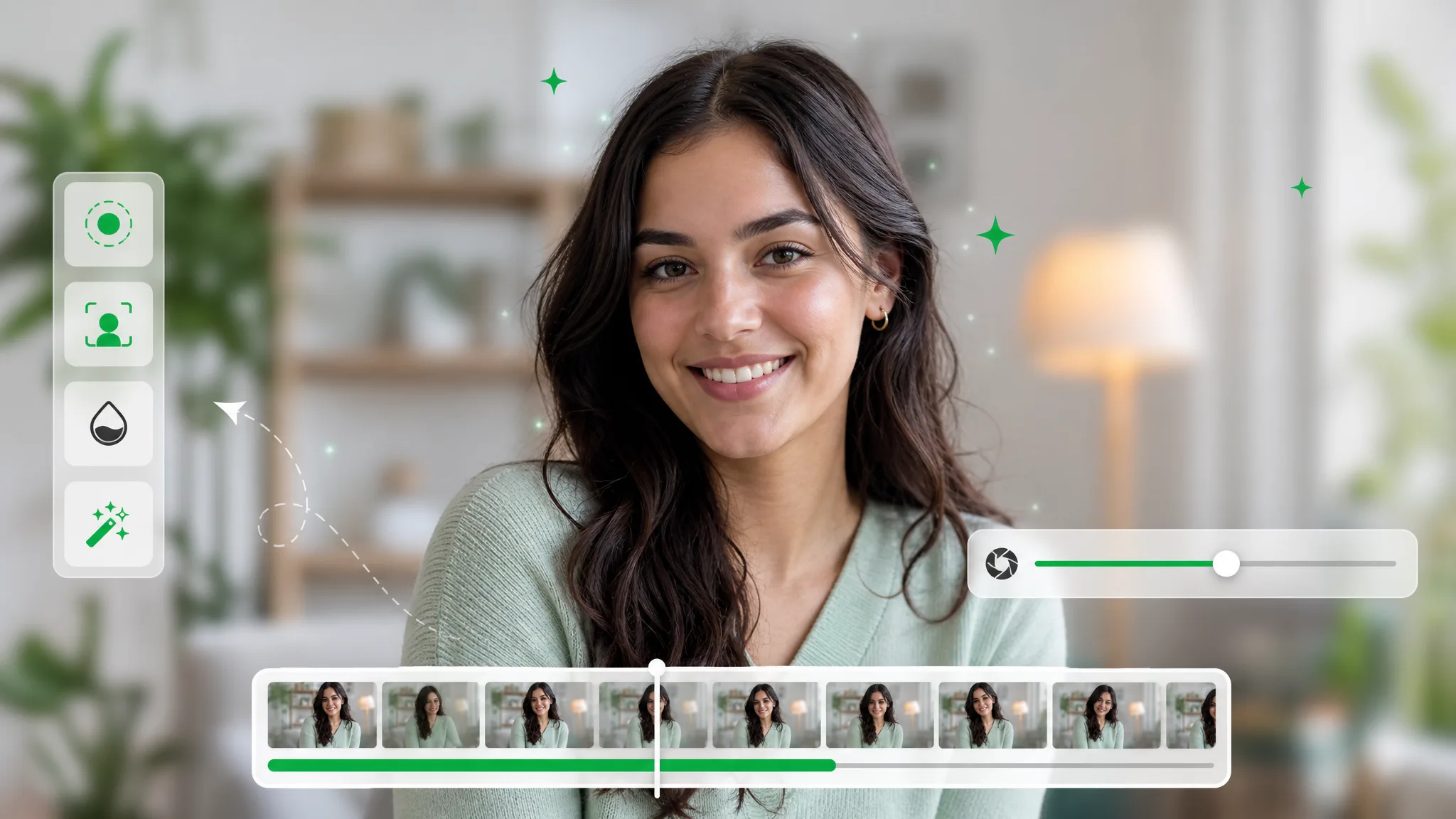
A smiling woman in a mint sweater with a softly blurred living room behind her, beside a slider and a clip timeline.
or drop a file hereMP4, MOV, WebM · Max 60s · up to 4K · 100MB
No video? Try one of these:
No watermark
  • No watermark
  • Blurred MP4 or transparent WebM
  • Up to 4K per run

Before and after

Blur Video Background Before and After

These sample clips run from a cluttered room to fast action and CGI scenes. Drag each slider to compare the original shot with the version where the backdrop is blurred and the subject stays sharp.

BeforeAfter

Cluttered room blurred

Keep faces sharp while the messy background melts away.

BeforeAfter

Private background softened

Soften the apartment behind a recorded product demo.

BeforeAfter

Cinematic depth of field

Add a soft, camera-style blur behind a figure in the foreground.

BeforeAfter

Action with soft focus

Keep a fast-moving subject sharp while the scene blurs.

BeforeAfter

Character in soft focus

Add depth with a smooth, natural background blur.

BeforeAfter

Cinematic CGI blur

Give a CGI shot a soft depth-of-field background.

Features

What a Blur Video Background Tool Does for Your Footage

A blur video background tool finds the subject first and softens only what sits behind it, so faces and hands stay crisp while the room fades. These four features cover the cutout, the preview, privacy and blur strength.

A sharp subject without a green screen

Upload footage shot in an open-plan office, a kitchen or a studio, and AI picks out the person or product in each frame. The blur video background result then places a blurred copy of the same footage behind that subject, so colleagues, desks and shelves turn into soft shapes while the face and hands stay in focus. Nothing needs masking by hand.

Blur Your Background
A man with folded arms in an office, coworkers sharp on the left and blurred into soft shapes on the right.

A preview to check before you download

When processing finishes, the blurred MP4 plays inside the page. Scrub from the opening frame to the end and look closely at loose hair, quick gestures and the edges of the shoulders. When the blur video background result is for a client, this is the moment to approve the take, with the subject on its own WebM layer as a second download.

Preview a Blurred Clip
A smiling woman's face split by a slider, a sharp room with shelves on one side and glowing bokeh lights on the other.

Privacy for the room behind you

A blurred backdrop hides laundry on a chair, family photos on a shelf or notes on a whiteboard, with nothing to tidy before you hit record. Blur video background in a selfie clip, a recorded call or a remote update, and viewers keep their eyes on your face and your message rather than on the room.

Hide a Messy Room
A selfie video of a man in a cluttered bedroom, then the same shot with the clothes rack and shelves blurred.

Blur strength from subtle to strong

Pick a value from 0 to 100 before processing. Low values keep a café, a shop or a city street recognizable, which suits vlogs and on-location intros; high values melt the scene into soft color for a cinematic, shallow-focus look. The strength you choose applies across the whole clip, so every frame matches.

Pick a Blur Strength
A woman in a green blouse shown twice, once with a heavily blurred room and once with a lighter blur, above a timeline.

Three steps

How to Blur Video Background in a Recorded Clip

To blur video background in a recording, upload the clip, pick a strength and let AI separate the subject. Three steps take you from the original file to a blurred MP4 you check before you download it.

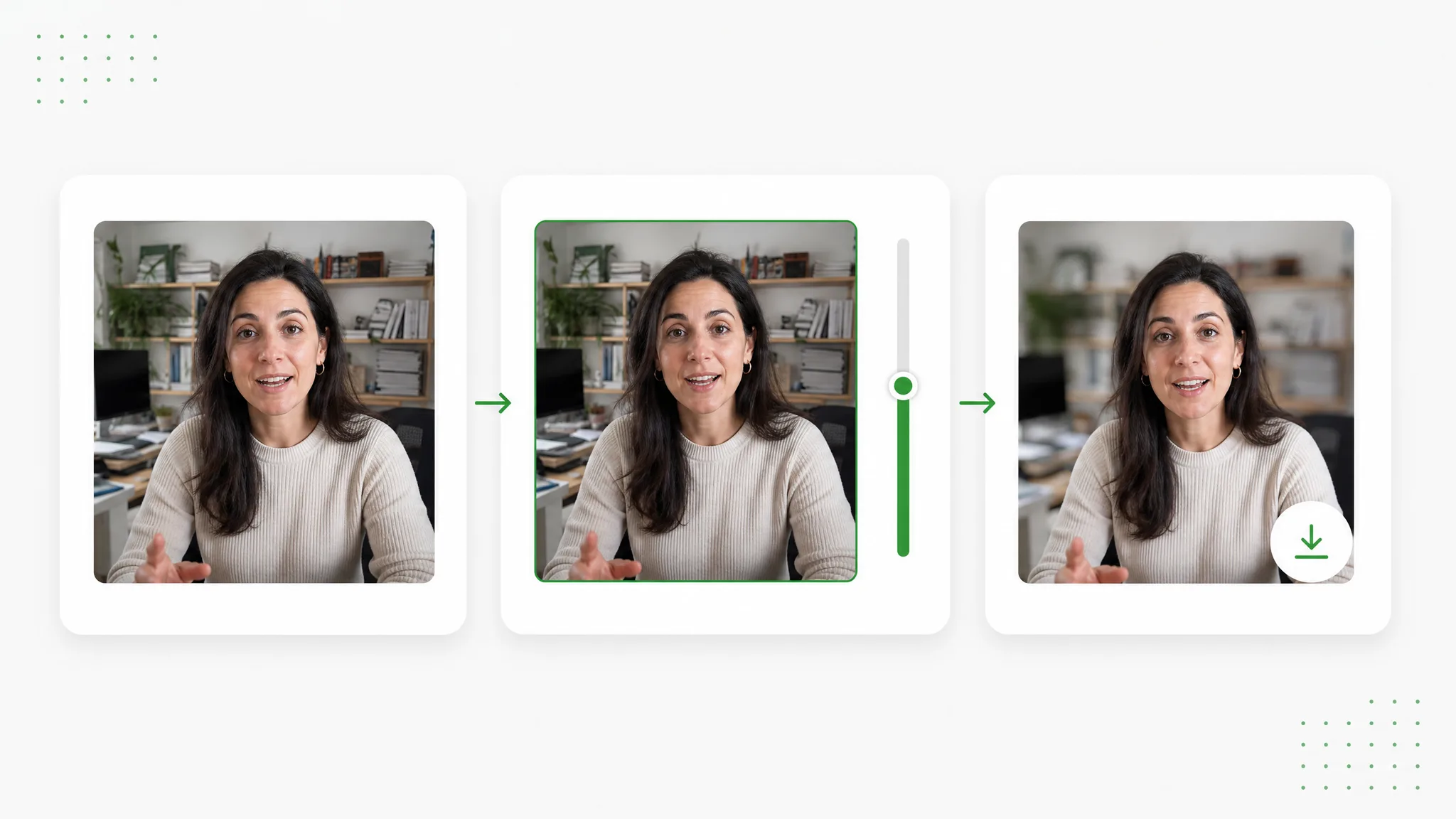
Three panels of a woman in a home office: the original frame, a green blur slider, then the same room softly blurred.
  1. 1

    Upload the clip you recorded

    Choose an MP4, MOV or WebM file of up to 100 MB: a talking-head take, an interview answer, a meeting recording or a product demo. Each run handles up to 60 seconds at up to 4K, and when the recording runs longer, a trim timeline lets you keep just the stretch you need.

  2. 2

    Set the blur strength and start processing

    Drag the blur strength slider anywhere from 0 to 100; it starts at 60, a middle setting that softens most rooms without hiding them. Once you start, the blur video background tool sends the clip to the cloud, where AI separates the subject, and a progress screen keeps you posted.

  3. 3

    Check the blurred MP4 and download it

    Play the result in the page and watch hair, fingers and the moments when the speaker turns or gestures. When the blur video background result looks right, download the H.264 MP4, or save a transparent WebM cutout for another composition. The MP4 carries picture only, so lay the original audio back under it in your editor.

Project ideas

When to Blur Video Background in Your Recordings

People blur video background whenever the room competes with the person talking. These four kinds of recordings show where a softer backdrop helps, from a team update filmed at home to a clip shot on a busy street.

Recorded meetings and remote talks

Upload a team update, a webinar segment or a remote talk you filmed at your desk, and blur video background clutter so colleagues watch you and your slides rather than the bookshelf. Then drop the blurred MP4 into the edit of your update, next to your slides.

A woman with earbuds at a home-office desk, then the same call recording with the shelves behind her blurred.

Vlogs and talking-head videos

A vlogger speaking to camera in a living room can blur video background behind them, turning lamps and plants into soft light, which gives a phone recording the shallow-focus feel of a larger camera. Download the MP4, add music, captions and your voice track, and publish the episode to your channel.

A vlogger talking to camera in a living room, then a closer shot with the lamps and plants turned into soft blur.

Interviews and recorded answers

For an expert comment, a job application video or an interview answer filmed in an office, the blur video background tool softens whiteboard notes and paperwork behind the speaker. The person stays sharp, so the answer carries the moment when you cut it into the final interview.

The same woman in an office with a whiteboard, the room sharp on the left and softly blurred on the right.

On-location and product clips

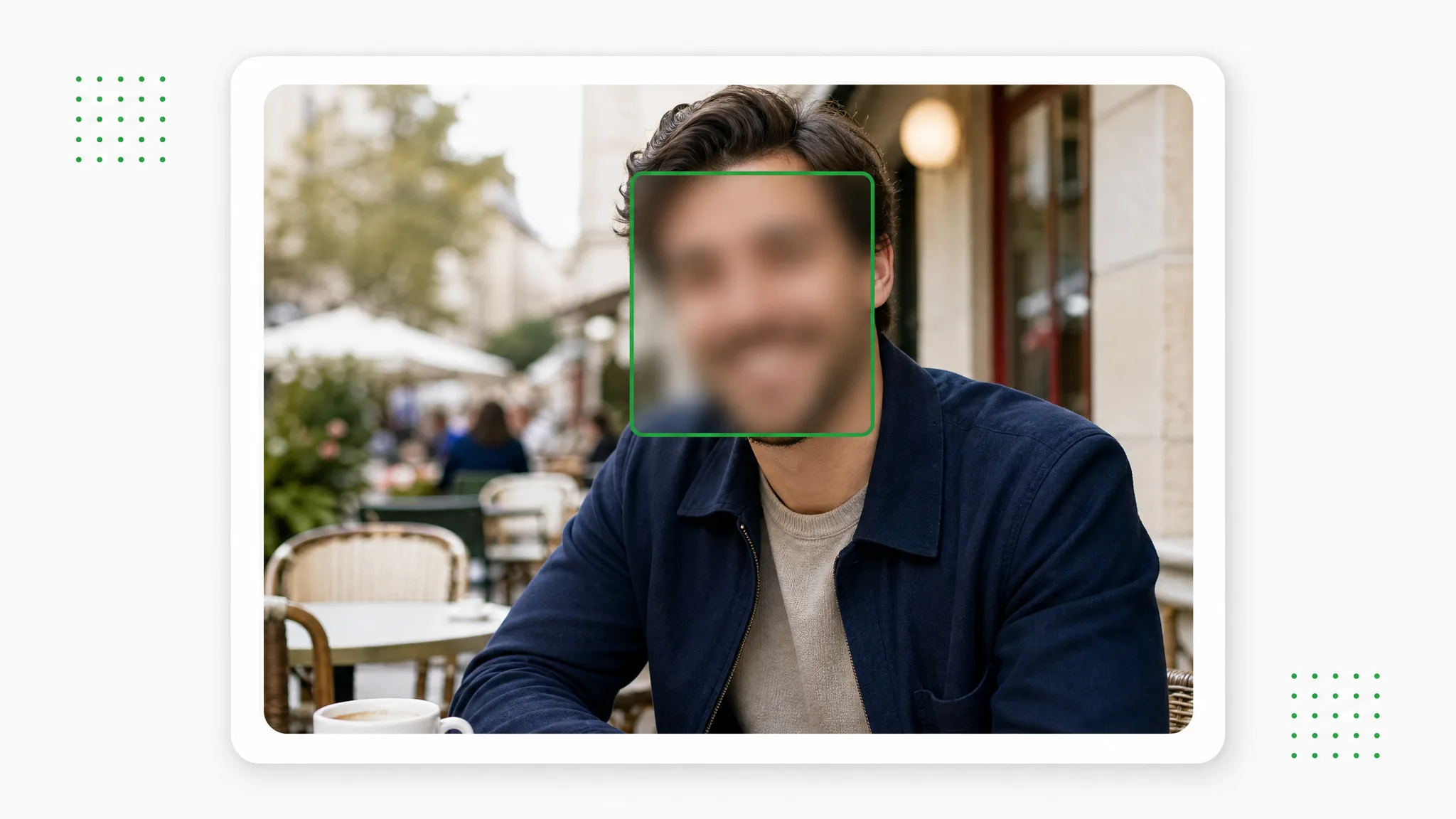
Filming outdoors or in a shop brings passersby, signs and crowded shelves into the frame. Blur them behind a presenter introducing a place or holding up a product, keep the strength low so the setting still reads, and use the clip on a product page, in an event recap or in a social post.

A woman with a backpack on a city square, then the same clip with the buildings and passersby blurred.

Creator stories & examples

How Four Creators Blur Video Background in Recorded Clips

“Our quarterly update was filmed in an open-plan office, and colleagues walking behind me pulled attention away from the numbers. I used the tool to blur video background at a strength of about 70, checked my hands and hair in the preview, then laid the original audio back under the MP4 in our editor. The people behind me became soft shapes.”
Noemi CastellanInternal Communications Lead

Questions

Blur Video Background FAQ

Answers to what people ask before they blur video background in a recording: how it works, how to start for free, which files fit and how to keep the edges clean.

A blur video background tool keeps the person or product in focus and softens everything behind it, giving footage you already shot a portrait-mode look. RemoveVideoBG's AI finds the subject in every frame, and your browser layers that cutout over a softened version of the same clip before handing you an MP4.

Reviewed by RemoveVideoBG TeamUpdated

Blur Video Background on Your Next Recording

Bring a talking-head take, an interview answer or a product demo and blur video background in one run: choose how soft the room looks, let AI keep the speaker in focus and download a blurred MP4. New accounts get free credits.

Upload a Clip to Blur