Black Friday

2× credits on credit packs and your first month. Yearly plans get 6 extra months of credits.

Ends Dec 1, 11:59 pm PTGet the deal

Blur Part of Video Footage Before Sharing

Cover a chosen detail while keeping the surrounding scene clear. Blur part of video with a fixed box, set its time range and preview the cover before saving an MP4.

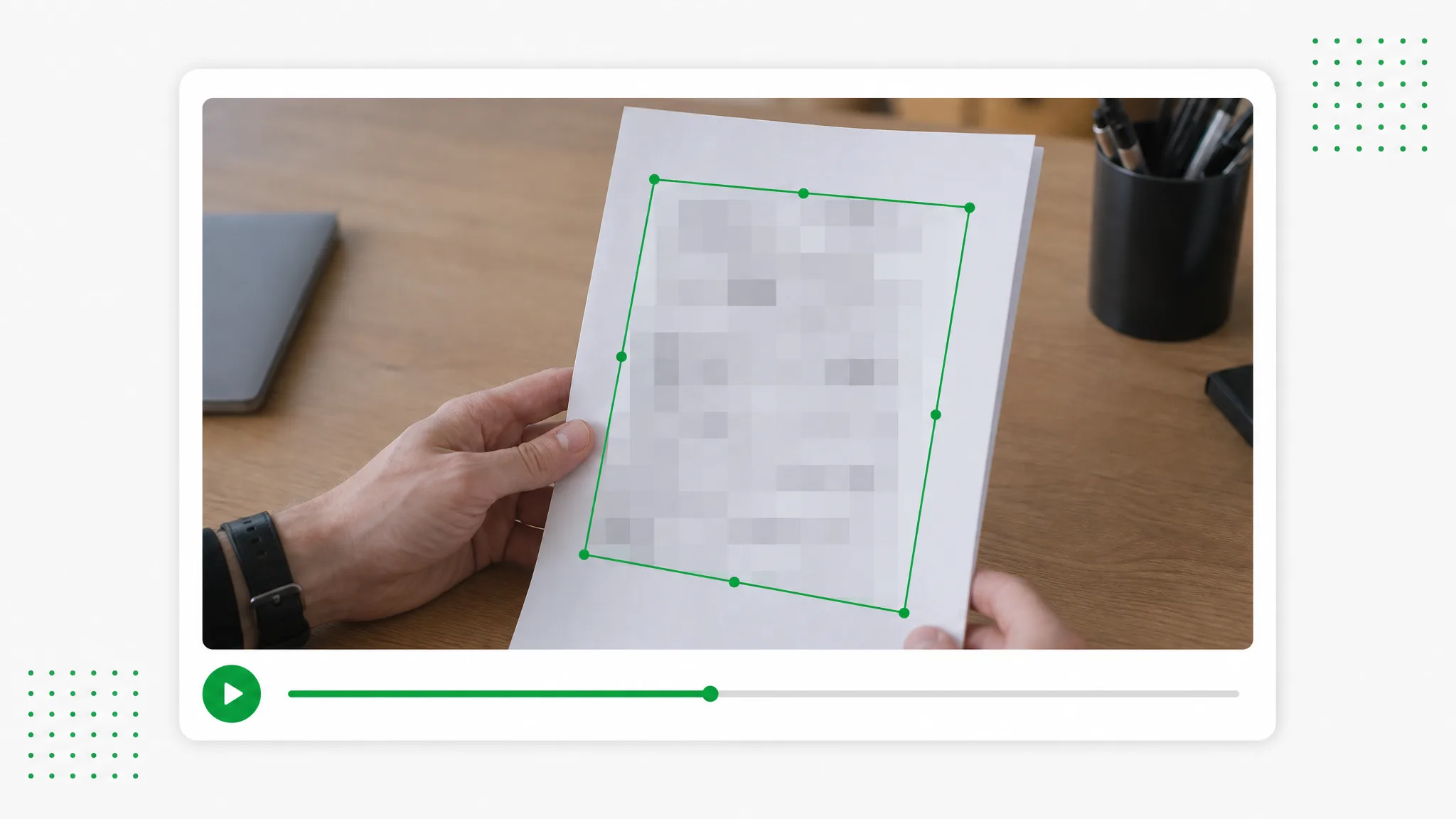
Hands hold a document in a video player, with a green rectangle around softened text.
or drop a file hereMP4, MOV, WebM
No video? Try one of these:

Your video never leaves your browser — every frame is processed on your device.

  • Local processing · No account · No credits
  • No watermark
  • MP4 with the source audio

Shared clip examples

Source Clips for Blur Part of Video

These clips demonstrate the site’s background-removal workflow. You can blur part of video using the workspace above to cover selected regions while keeping the surrounding scene visible.

BeforeAfter

Creators & vloggers

A presenter prepared as a separate subject for another scene.

BeforeAfter

Sports & action

An action example showing the subject cut out on a transparent background.

BeforeAfter

3D character animation

An animated character shown separately from its original setting.

BeforeAfter

Game & VFX characters

An armored fantasy game character with a cape, cut out from its night-time landscape.

BeforeAfter

Social UGC & hauls

A creator and product example with the background removed.

BeforeAfter

AI & CGI footage

A sci-fi spaceship flying through storm clouds, cut out from the sky.

A deliberate visual cover

Control How You Blur Part of Video Footage

With this video censor tool, cover the regions you choose while leaving the surrounding picture readable. Select the visual style and timing for the information in your recording.

Choose soft blur or visible pixels

When you blur part of video, choose the style that suits the detail. Blur creates a softened patch, while Pixelate makes the covered area visibly blocky. Adjust the strength in the work area and preview the result at a useful size. Judge the cover on the information you are sharing rather than on the illustration alone.

Create a Transparent Clip
A woman with a dog in a video player, above blur and pixelation sample controls.

Set a time range for the cover

When you blur part of video, a detail may appear for only one section of a recording. This video censor tool lets each fixed region have its own time range, so the cover can appear during that section. Review the moments at both ends of the range and check that the selected area continues to contain the information.

Use Your Own Footage
A marked time range beneath footage of a woman and dog.

Keep region processing on your device

Censor video online through a browser workflow that reads the recording locally. The source does not need a server upload for this region effect. Keep the downloaded result in your own files and retain the original for later revisions. Available memory and browser support still affect which recordings your device can export.

Cut Out Your Brand Video
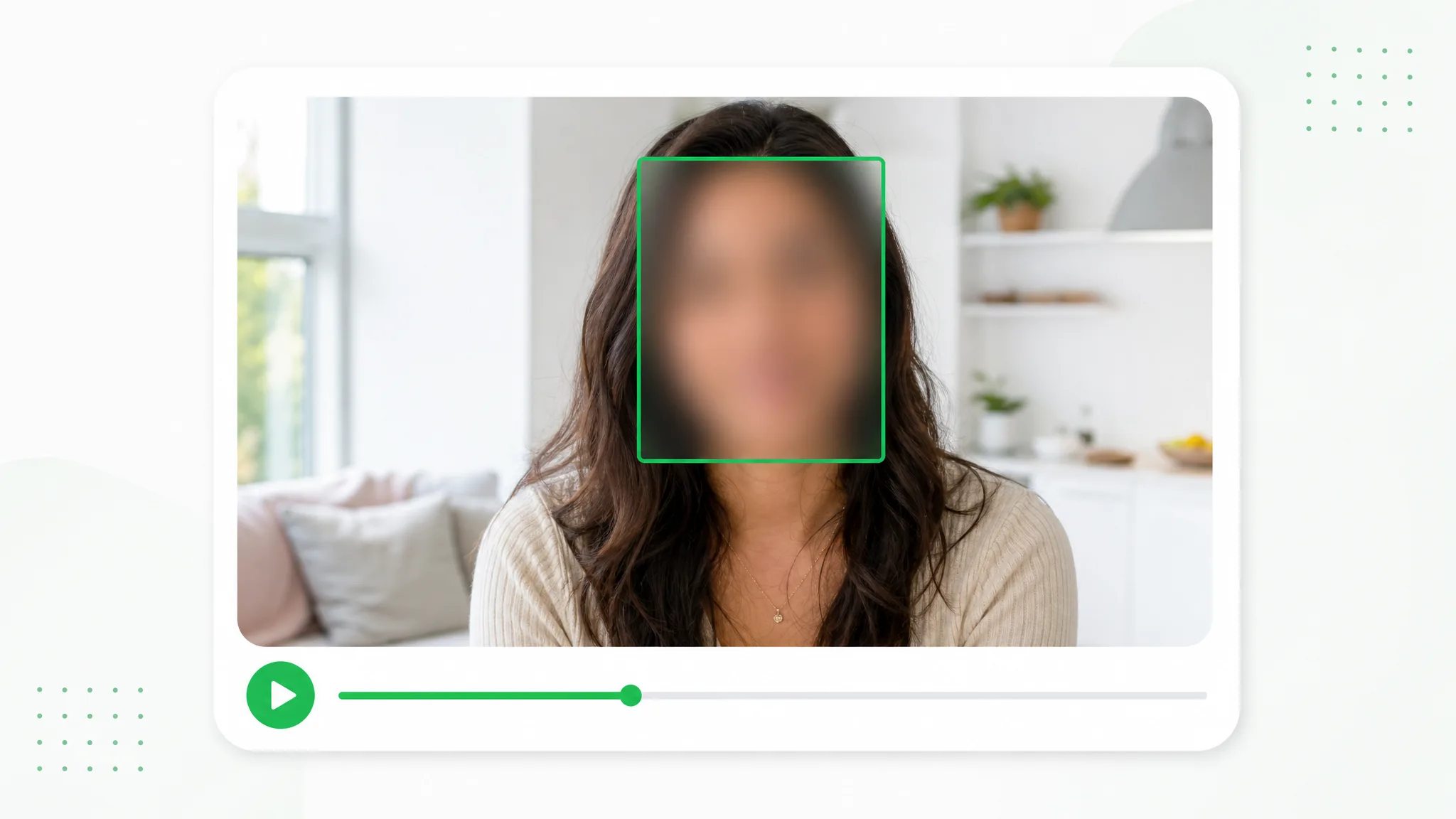
A street video in a browser beside device and privacy icons.

Review picture and sound together

Keep your explanation audible while you blur part of video, retaining the source audio track in the supported MP4 export. Listen as well as watching: hiding a written name does not remove the same name from speech. Preview the marked picture, export the file and inspect the downloaded result before using it in a presentation or shared recording.

Start With One Clip
A woman speaking in a video with an audio waveform beneath the picture.

Select, cover, check

How to Blur Part of Video With a Fixed Region

To blur part of video, choose a local recording, place a region and check its time range. Inspect the downloaded MP4 as well as the preview.

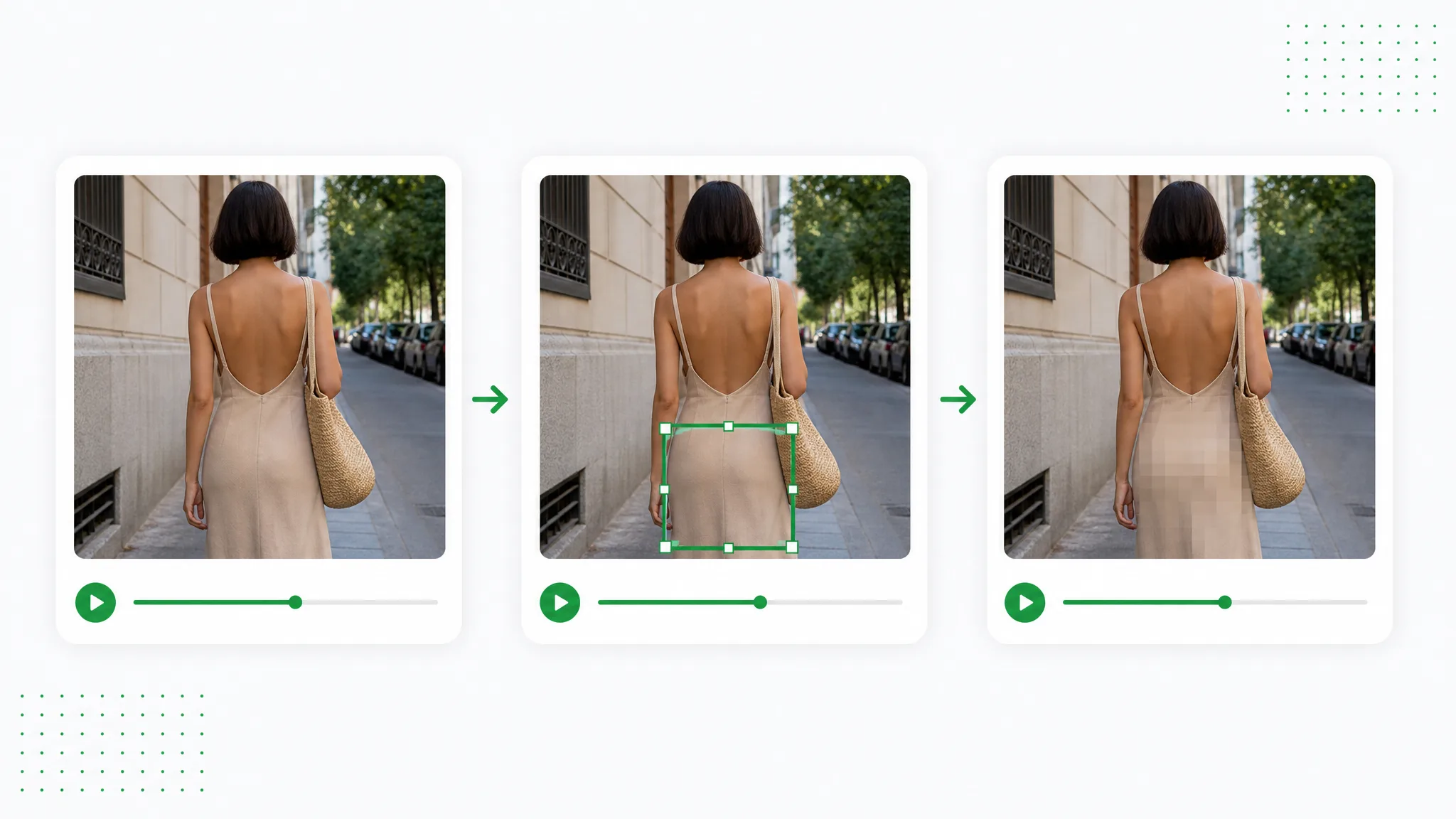
Three panels show a woman walking along a street, a selected rectangle and the softened area.
  1. 1

    Open the recording to review

    Choose a supported video saved on your device and identify the detail you want to cover. Preview the surrounding moments before drawing a region. This video censor tool is most useful when you know where the private information appears in the frame.

  2. 2

    Draw the region and set its range

    Place a box over the detail, choose Blur or Pixelate and adjust the strength. Set when that region should appear. To blur part of video footage throughout a shot, check that the fixed box continues to cover the detail as the recording plays.

  3. 3

    Preview the cover and export

    After you blur part of video, play the marked section, including its beginning and end, before exporting the MP4. Open the downloaded file and check the covered area and sound again. Keep the source recording separately so you can revise the selected regions when the edit changes.

Share the relevant context

When to Blur Part of Video Before Sharing

You can blur part of video to prepare a recording for a lesson, review or shared explanation. Choose the detail to cover around the needs of that audience.

Screen recordings with account details

A presenter can blur part of video footage that shows an account name, address or internal reference in a screen recording. Place the region over the relevant part of the screen and set its range. Check that scrolling or a window movement does not reveal the detail elsewhere.

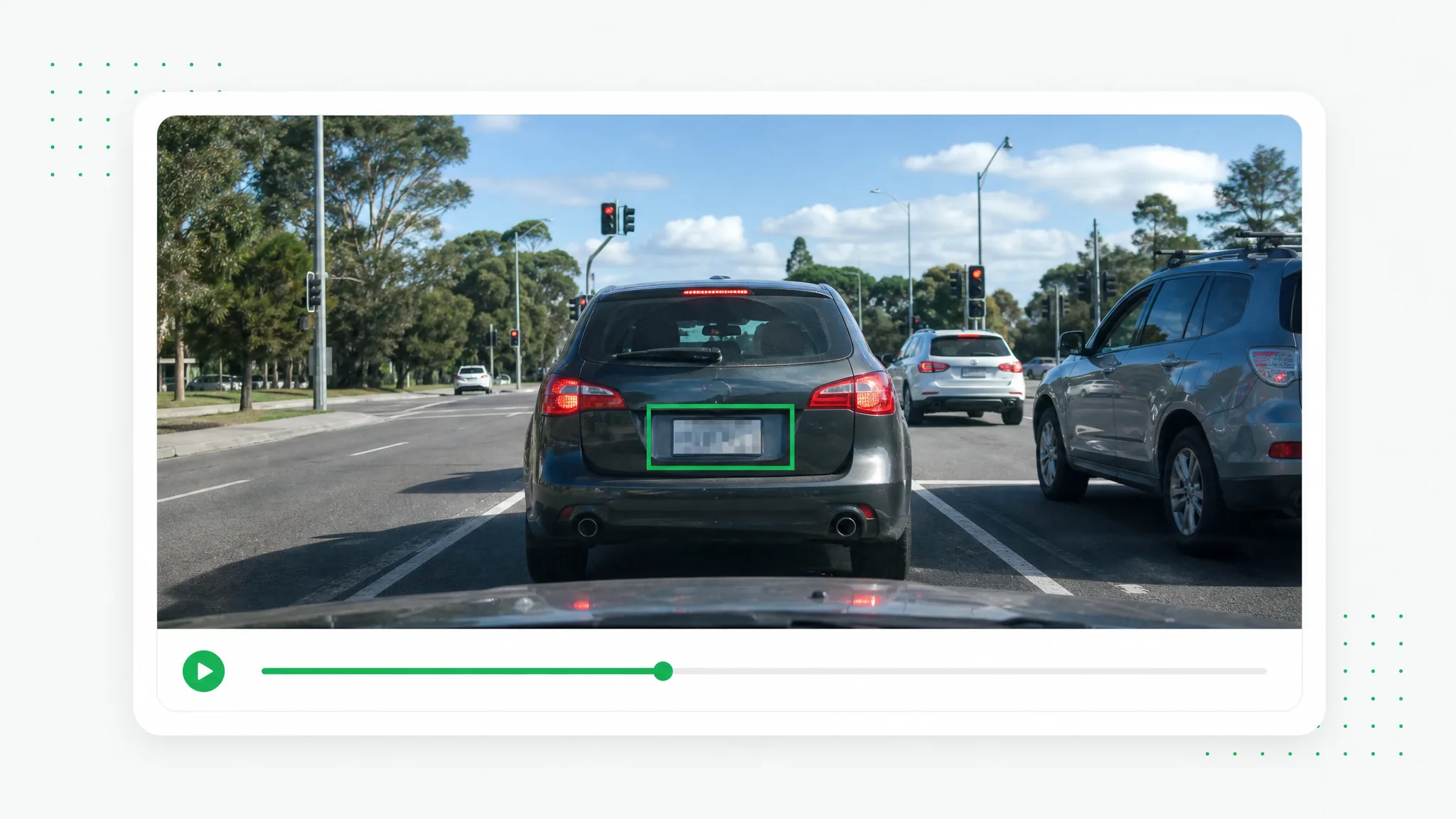
A screen recording with a selected area obscured by a rectangular mask.

Personal information on a desk

Use a fixed cover to blur part of video when an identification card or document appears in a recorded demonstration. Cover the detail while keeping the hands and surrounding action visible. Check the source carefully for reflections, other readable text and moments where the document moves outside the chosen region.

An identity card with its sensitive details covered by pixelation.

Selected areas in an interview

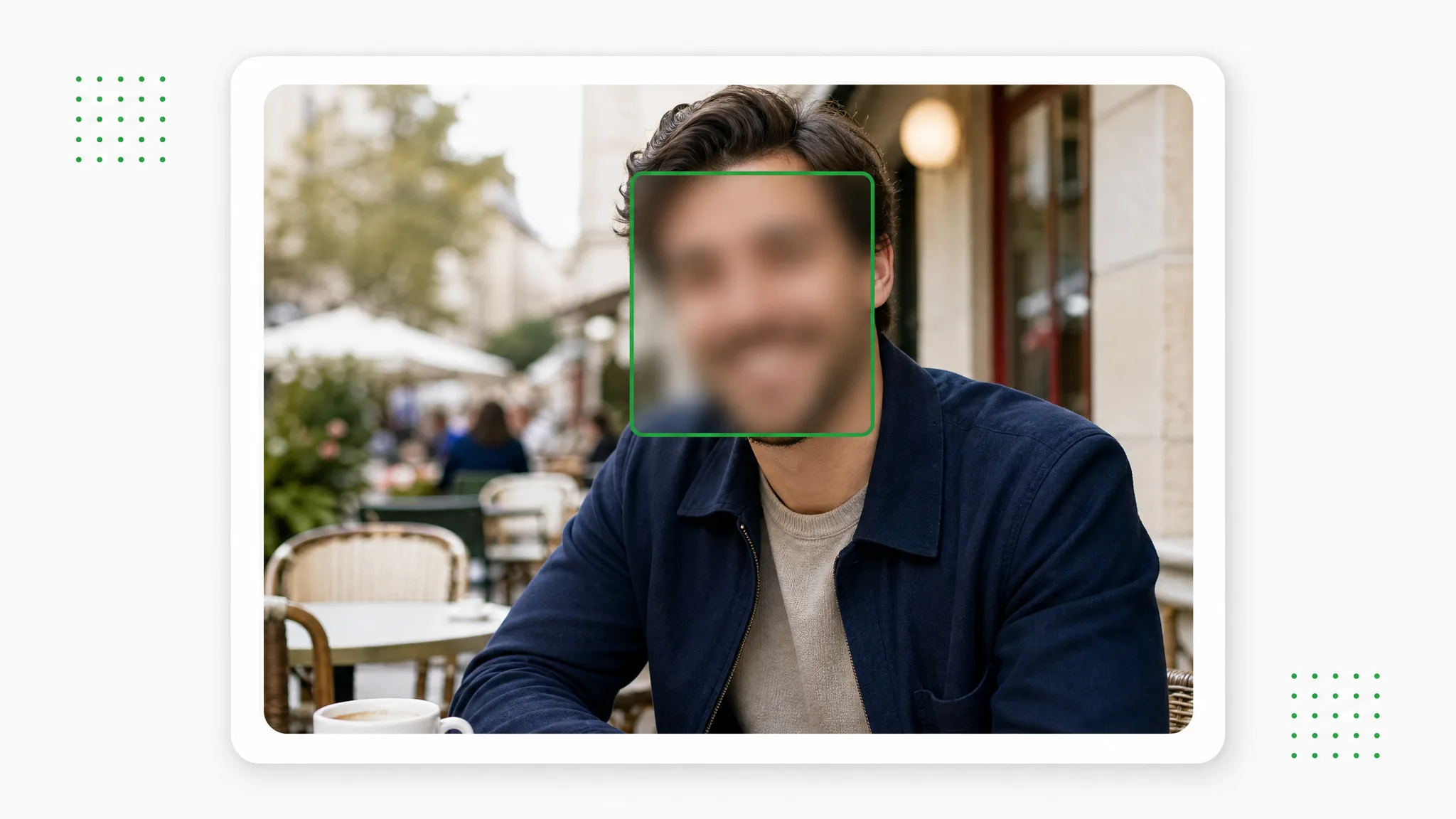
A fixed shot may contain a detail that the speaker would prefer not to share. You can blur part of video by selecting that area and reviewing the full shot. For moving faces, distinguish this fixed-region workflow from a tracking editor before deciding how to prepare the recording.

An interview scene with one selected region pixelated.

Paperwork shown during an explanation

A document can need video censorship when a sheet displayed to the camera contains a private name or reference. Cover the appropriate region and preview the movement of the page. The downloaded recording should still communicate the explanation while the selected cover remains over the detail you identified.

A paper document with a rectangular area obscured.

Creator stories & examples

Blur Part of Video Project Stories

“For a software walkthrough, I needed to blur part of video footage showing a customer reference in the corner. The window stayed still, so I placed a fixed region and checked the start and end of its range. The exported MP4 kept the explanation visible around the covered detail.”
Lucia MarenSoftware Trainer

Understand the selected cover

Blur Part of Video Questions

This video censor tool uses manual regions and selected time ranges. Check how the cover behaves, what happens to sound and how to review the exported file.

To blur part of video footage is to soften a selected area while keeping the rest of the picture readable. This tool lets you draw fixed rectangular regions and choose either soft blur or blocky pixelation for those areas.

Reviewed by RemoveVideoBG TeamUpdated

Blur Part of Video and Review the Result

Blur part of video where the recording shows private details, then adjust the cover to keep them inside it. Replay its time range, export the MP4 and inspect the result before bringing the recording into your project.

Choose an Area to Cover