












Chroma Key Online for Images — Free and Unlimited

Drop in a green or blue screen photo, tune the edges and save a transparent PNG or a new background. Free, unlimited chroma key online that works right in your browser.

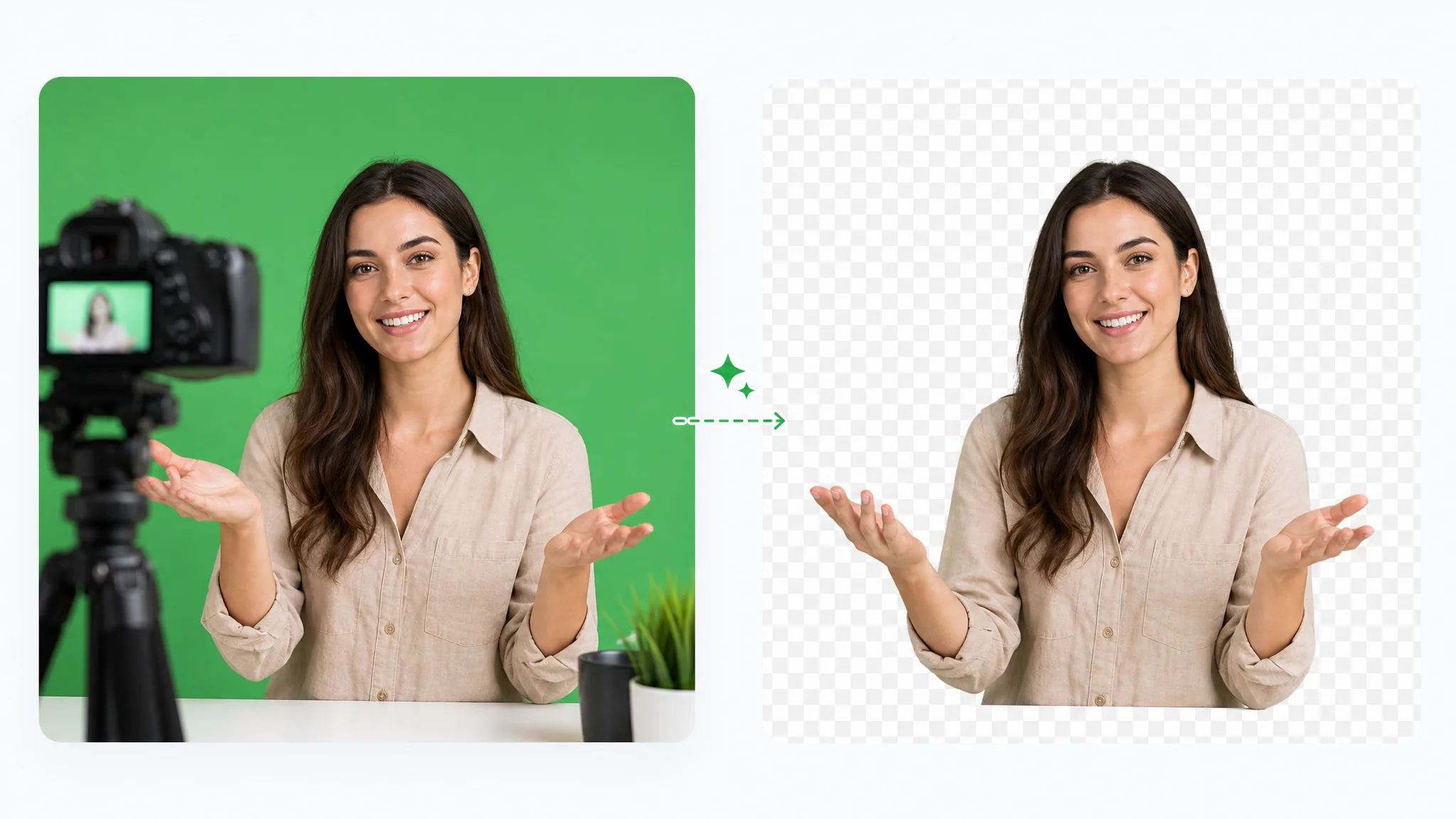
Presenter on green screen — background removed
Presenter on green screen — original
BeforeAfter
  • Free
  • No sign-up
  • Unlimited
  • No watermark
  • Transparent PNG export
  • Runs in your browser

Before and after

Chroma Key Online Results on Photos

Each sample has a green screen, blue screen or plain wall behind the subject, keyed with this chroma key online tool and shown on a transparent background.

 — background removed
 — original
BeforeAfter

Surfer on green screen

A surfer kneeling on a board, keyed from green to transparent.

 — background removed
 — original
BeforeAfter

Sneaker product photo

A running shoe on green, ready for a transparent or white listing.

 — background removed
 — original
BeforeAfter

Dog with fluffy fur

A golden retriever on green, with the soft fur edges kept.

 — background removed
 — original
BeforeAfter

Portrait on blue screen

Curly hair on a blue backdrop, with the blue picked up automatically.

 — background removed
 — original
BeforeAfter

Portrait on a white wall

A plain white wall detected as the key color and removed.

 — background removed
 — original
BeforeAfter

Handbag on green screen

A leather handbag cut out for a shop or catalog.

Features

Free Chroma Key Online with No Sign-Up

Every feature below serves one chroma key online task: picking the backdrop color, cleaning the edges and exporting a full-size PNG.

Free, unlimited keying with no account

Use chroma key online as often as you like: there is no account to create, no credit balance and no watermark on the PNG. Because the tool runs in your browser, a shelf of product photos or a stack of thumbnails costs the same as a single image, and every download is yours to use in Canva, slides or a website.

Chroma Key a Photo
A dog, a sneaker and a game character keyed out of green screen photos onto a transparent checkerboard.

Green, blue or any backdrop color

The chroma key online tool reads the edges of your picture and picks the backdrop color automatically. Switch to the Blue preset for a blue screen, or click anywhere on the background to key a white wall, a black curtain or a colored paper sweep. The custom color picker covers studio colors that sit between the presets.

Pick a Key Color
A portrait on a blue screen and a portrait on a white wall, with the key color picked from each background.

Clean edges with softness and spill removal

Three sliders shape the edge. Tolerance decides how much of the backdrop turns transparent, Edge softness feathers hair and soft outlines, and Spill removal pulls the green or blue tint out of skin, clothing and glass while keeping their brightness. Hold Compare at any time to check the original against your keyed result.

Clean Up the Edges
Close-up of a golden retriever’s fur on green and after keying, with the soft fur edges kept.

Transparent PNG or a new background

Keep the background transparent and download a PNG with an alpha channel for layering in design tools, or fill the space with a solid color or an image of your own before you export. A PNG from chroma key online keeps the original image size, so a keyed photo is ready for a thumbnail, a product listing or a slide.

Download a Transparent PNG
One keyed sneaker shown on a transparent checkerboard, on white and on a colorful gradient.

How it works

How to Chroma Key Online in Three Steps

Every chroma key online job starts with one photo and ends with a PNG ready for your design, slide or listing.

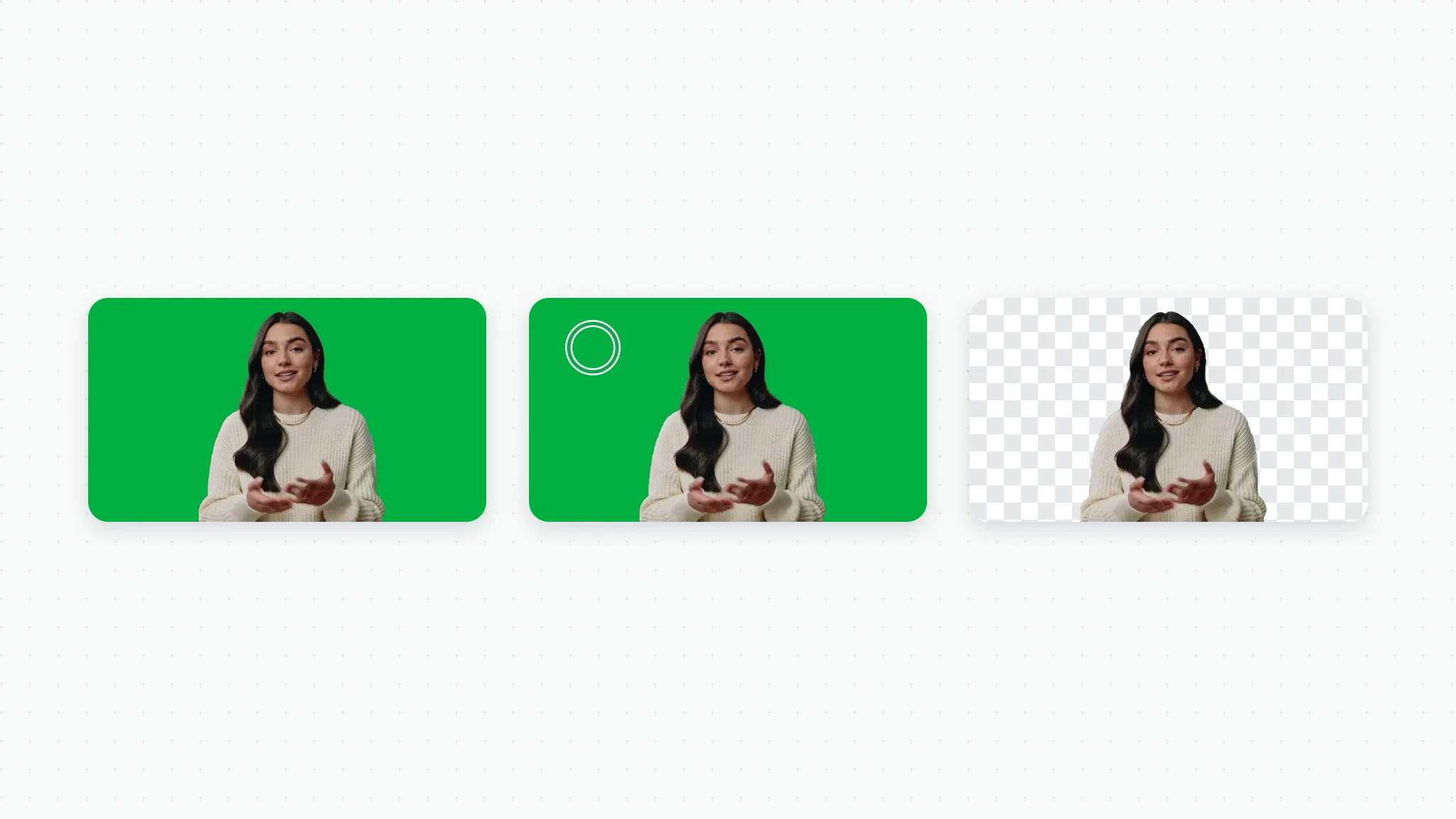
Three-step image chroma key: a green screen photo, the background color picked, then the transparent result.
  1. 1

    Upload or paste your photo

    Drop a PNG, JPG or WebP image into the page, choose a file, or paste a screenshot with Ctrl+V. Chroma key online keys the backdrop as soon as the image loads and shows a first cutout on a checkerboard, so you start from a result instead of a blank canvas.

  2. 2

    Pick the key color and refine the edges

    If the automatic pick misses, choose the Green or Blue preset or click the backdrop in the preview. Raise Tolerance until the whole backdrop disappears, add Edge softness for smoother hair and outlines, and turn up Spill removal to clear the colored fringe around your subject.

  3. 3

    Check the result and download the PNG

    Hold Compare to flip back to the original and check hair, hands and shadows. Keep the background transparent, fill it with a color or add your own image, then download the PNG. With chroma key online you can change any setting and download again.

Use cases

What You Can Make with Chroma Key Online

Here is how creators, sellers and teachers use chroma key online to remove green screen from image files for everyday work.

YouTubers and streamers

Shoot a reaction pose against your green screen, run it through chroma key online and drop the transparent cutout onto a bright thumbnail background. Keeping the PNG transparent lets you move and resize yourself in your thumbnail editor until the composition works.


A surfer cut out of a green screen photo and placed on a bold orange gradient for a thumbnail.

Online sellers

Product photos taken on a green or white sweep can become clean, consistent listing images. Use chroma key online to remove the backdrop, add a plain white background, and download a PNG that matches the rest of your catalog.

An orange leather handbag keyed off green and placed on a clean white backdrop.

Game artists and designers

Character renders and props are often exported on a flat green or magenta background. Key that color out, check the edges with Compare, and save a transparent PNG for overlays, mockups, stickers and sprite sheets.

An armored game character keyed from green onto a dark indigo backdrop.

Teachers and presenters

Photograph yourself or a classroom prop in front of a green cloth, then use chroma key online to place the cutout on a slide background or a school color. The result is ready for presentations, worksheets and newsletters.

A teacher cut out of a green screen photo and placed on a soft sky-blue background.

Creator stories & examples

Real Projects Made with Chroma Key Online

“My channel thumbnails always start with a quick shot against the green wall in my spare room. I used chroma key online to drop the green, pulled Spill removal up until the glow left my hair, and saved a transparent PNG that I placed over a bright orange background for the episode thumbnail.”
Dana OkaforYouTube Creator

FAQ

Chroma Key Online FAQ

Answers to common questions about using chroma key online for images: cost, privacy, formats and edge quality.

Chroma key online is a way to remove one background color, usually a green or blue screen, from an image in your web browser. This tool turns that color transparent, so you can save a PNG cutout or place your subject on a new background.

Reviewed by RemoveVideoBG TeamUpdated

Try Chroma Key Online on Your Next Photo

Bring a green screen photo, a product shot or a character render, and chroma key online removes the backdrop, lets you tune the edges and saves a transparent PNG or a new background, free with no sign-up.

Chroma Key a Photo