Black Friday

2× credits on credit packs and your first month. Yearly plans get 6 extra months of credits.

Ends Dec 1, 11:59 pm PTGet the deal

Blur Face in Video: Box the Faces You Want Hidden

Box each face you want hidden, pick blur or pixelate and the seconds it covers, then export an MP4 with the original sound. Your clip stays on your device the whole time.

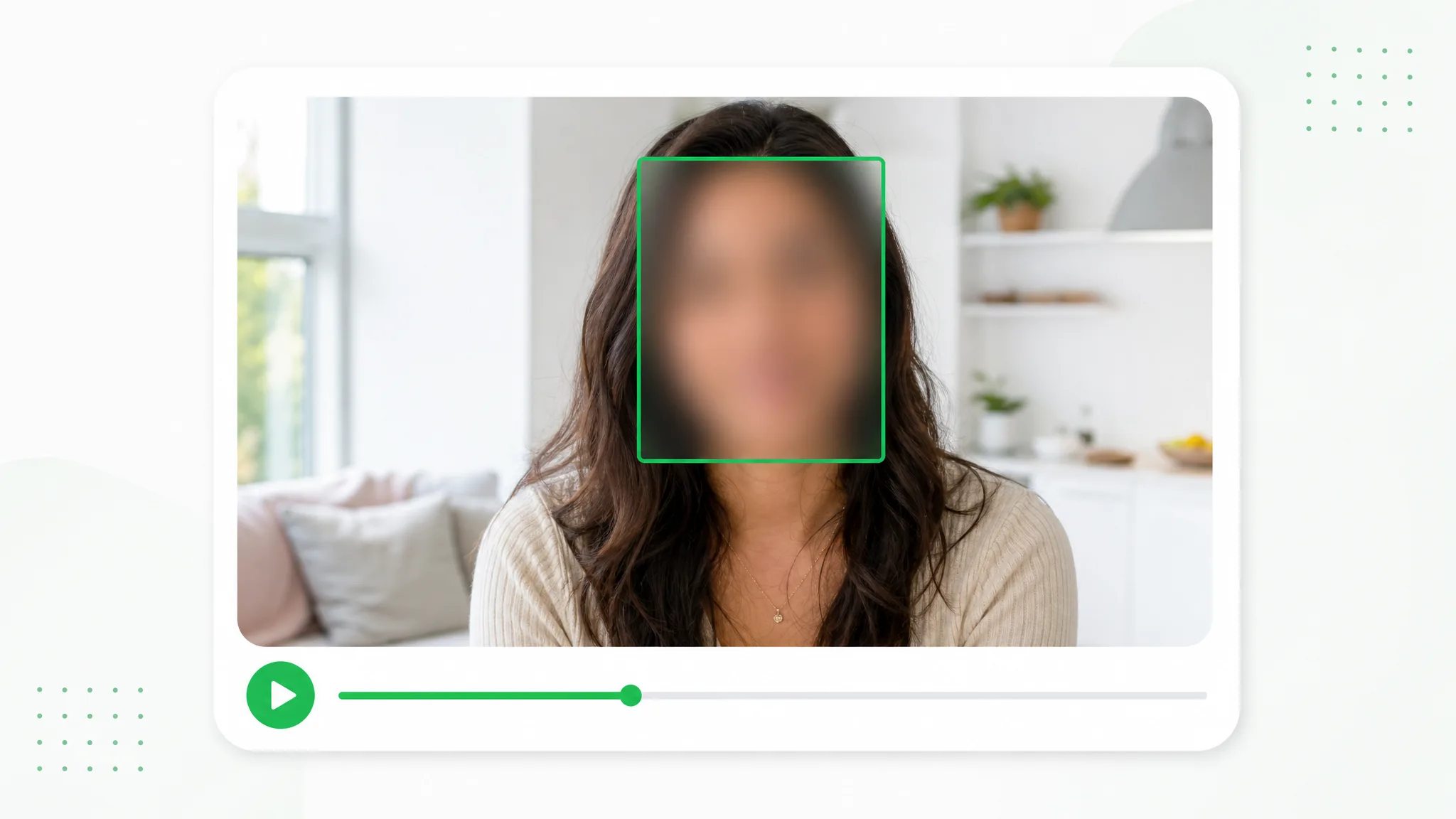
A woman with long dark hair in a bright living room, her face blurred inside a green box on a video player.
VideoPhoto
or drop a file hereMP4, MOV, WebM
No video? Try one of these:

Your video never leaves your browser — every frame is processed on your device.

  • Free
  • No sign-up
  • No upload
  • No watermark
  • MP4 with the original audio
  • Runs in your browser

Before and after

Blur Face in Video: Stills from Three Edited Clips

Each slider pairs a frame from a sample clip with the same frame after export. A fixed box was drawn by hand over the face, set to Pixelate or Blur. On your recording, only the boxes you draw change and the rest plays as filmed.

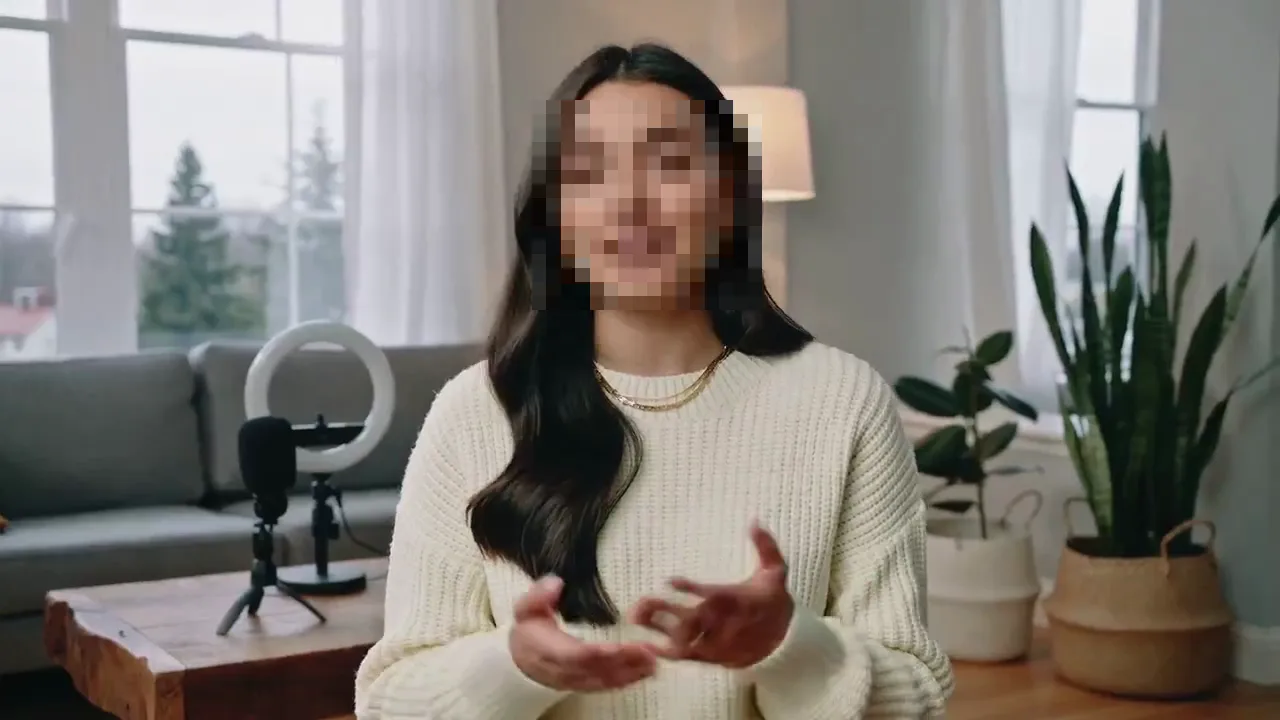
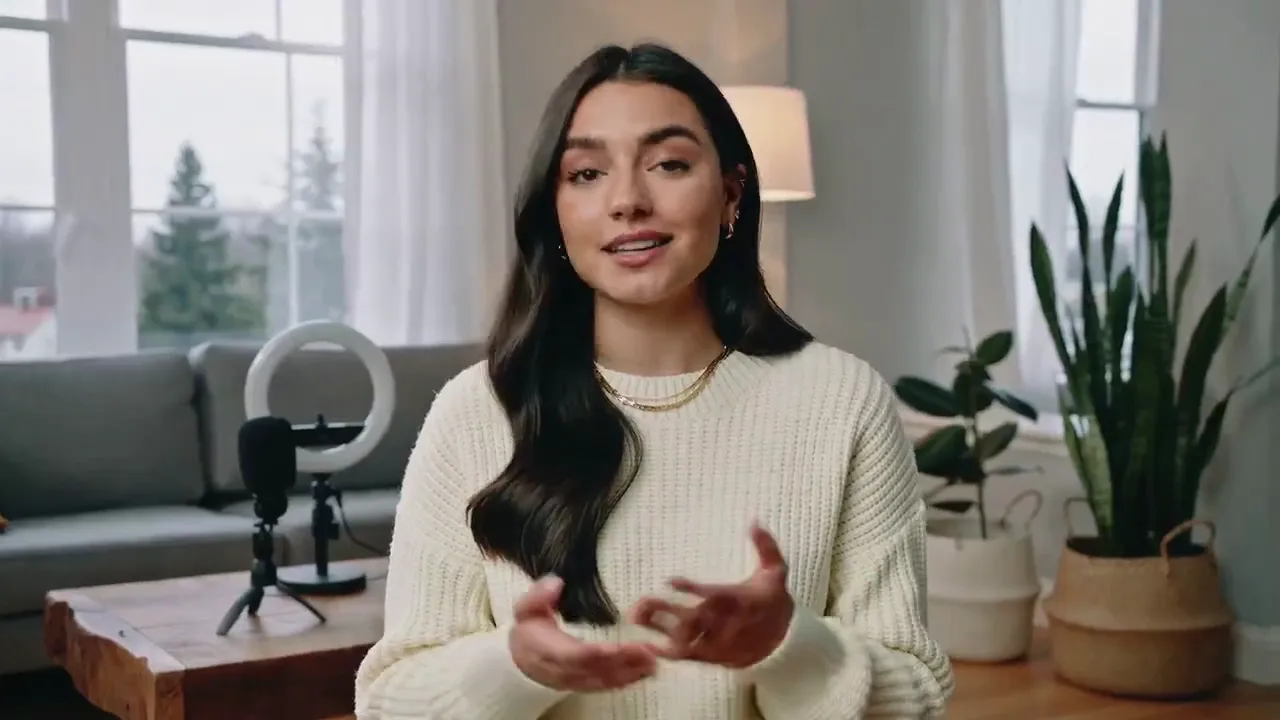
Presenter clip, pixelated: A fixed Pixelate box, drawn by hand, hides the presenter's face in this blur face in video example
Unedited source frame for the “Presenter clip, pixelated” example
BeforeAfter

Presenter clip, pixelated

A fixed Pixelate box, drawn by hand, hides the presenter's face in this blur face in video example.

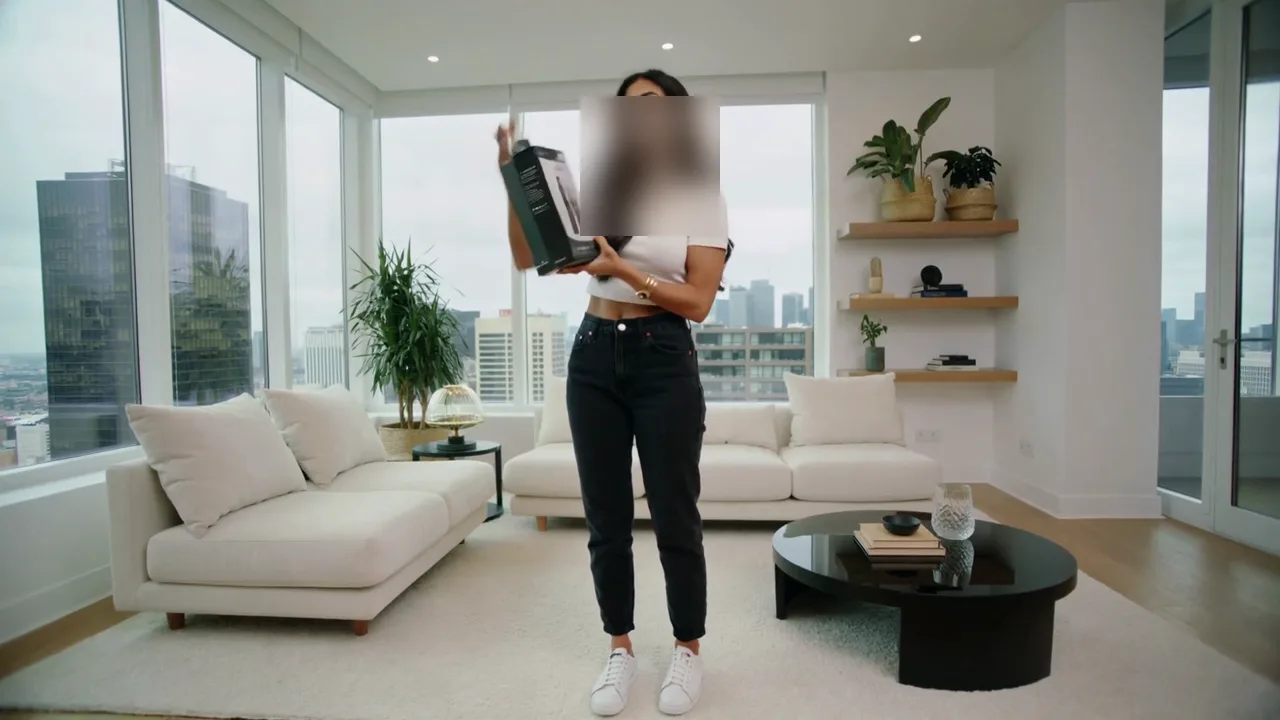
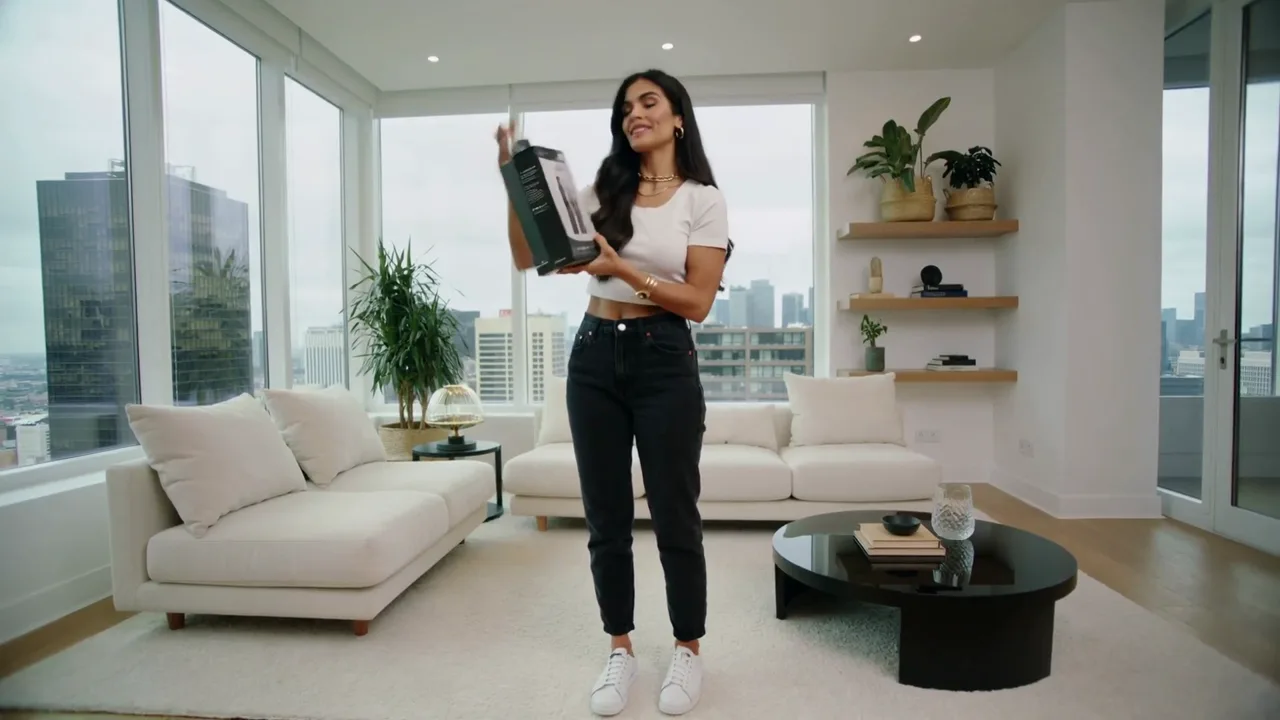
Product demo, blurred: One hand-drawn Blur box covers her face while the product and the apartment stay sharp
Unedited source frame for the “Product demo, blurred” example
BeforeAfter

Product demo, blurred

One hand-drawn Blur box covers her face while the product and the apartment stay sharp.

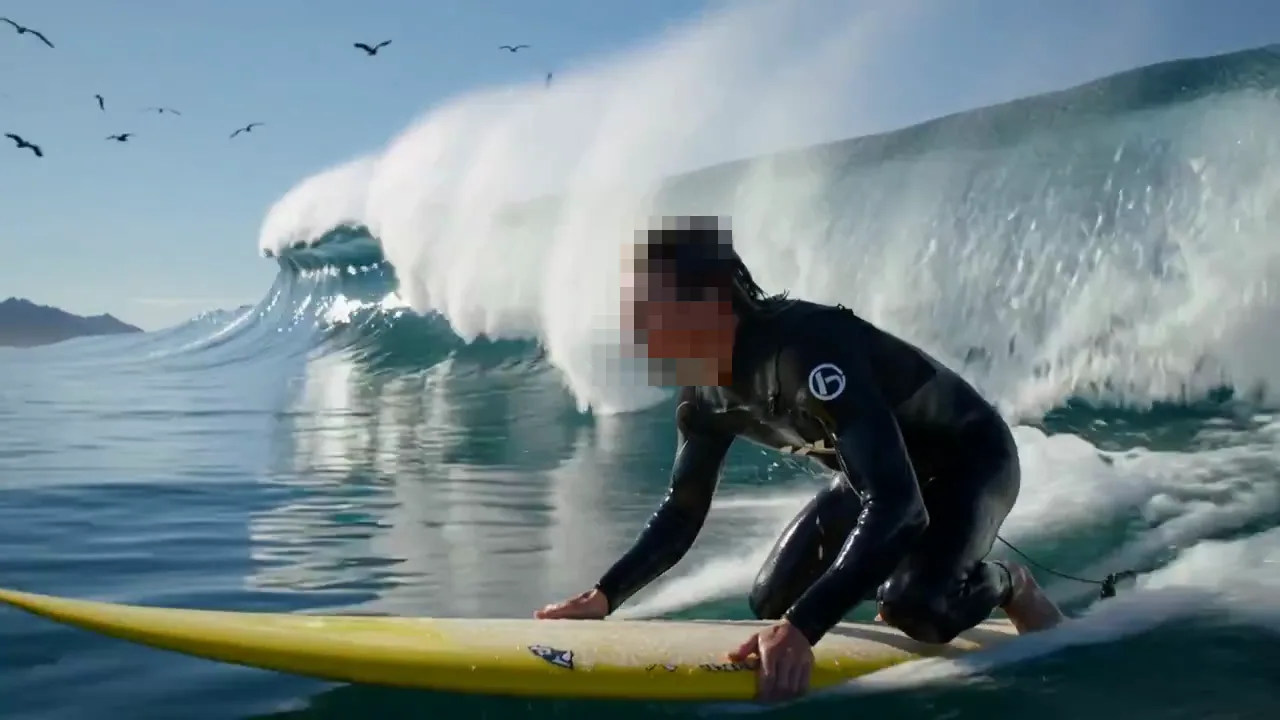
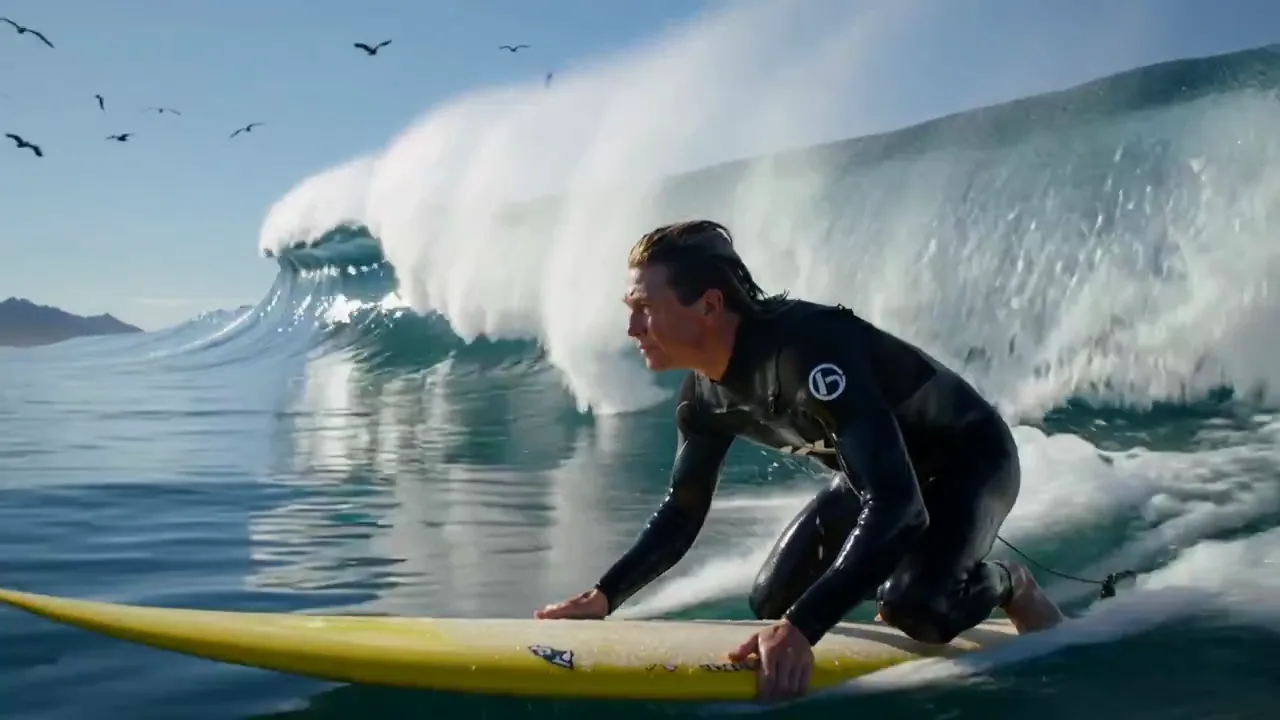
Surf clip, pixelated: A Pixelate box over the surfer's face; when a rider moves, add a new box for each stretch
Unedited source frame for the “Surf clip, pixelated” example
BeforeAfter

Surf clip, pixelated

A Pixelate box over the surfer's face; when a rider moves, add a new box for each stretch.

Features

What You Can Do with Blur Face in Video

With Blur Face in Video, the faces you box are covered with blur or pixelation for as long as you set. The four rows below show the style choice, several faces at once, local processing and time ranges.

Blur or pixelate, at the strength you pick

Every box carries its own style. Blur softens a face into a smooth haze, while Pixelate turns it into coarse squares that read clearly as a privacy cover. A strength slider from 10 to 100 sets how heavy the cover looks, so Blur Face in Video can give a distant passerby a light touch and someone close to the lens a thick, unreadable cover.

Blur a Face in Your Clip
Close-up of a woman's face split down the middle by a slider, the left half soft and the right half pixelated.

Several faces hidden, one person kept clear

Draw as many boxes as the shot needs, one per face. In a team clip you might box three colleagues who asked to stay off camera and leave the presenter untouched; Blur Face in Video only changes what sits inside a box, so keeping one person visible comes down to which faces you box. Drag a box to move it, or delete it and draw again.

Box Several Faces
Four coworkers standing in an office, three faces covered by blurred squares and the woman in front left clear.

Private processing on your own device

Every frame is decoded, blurred and re-encoded inside your browser with WebCodecs, so Blur Face in Video keeps the unblurred recording on your computer. That matters when the footage shows children, patients or strangers who never agreed to appear. There is no account, no credit balance and no watermark, and you can process as many clips as you like.

Blur Faces Privately
A hiker sitting above a mountain lake in a browser window, beside shield and laptop icons with check marks.

Time ranges for people who come and go

A walk-on rarely lasts the whole clip. Scrub to the moment a face appears and press Start here, then scrub to where it leaves and press End here, and that box applies between those two points. Boxes hold their position, so a person crossing the frame gets two or three short boxes in sequence, each placed where the face actually is.

Set a Time Range
A man walking down a hallway with his face blurred in a fixed green box above a timeline with one marked range.

How it works

How to Blur Face in Video in Three Steps

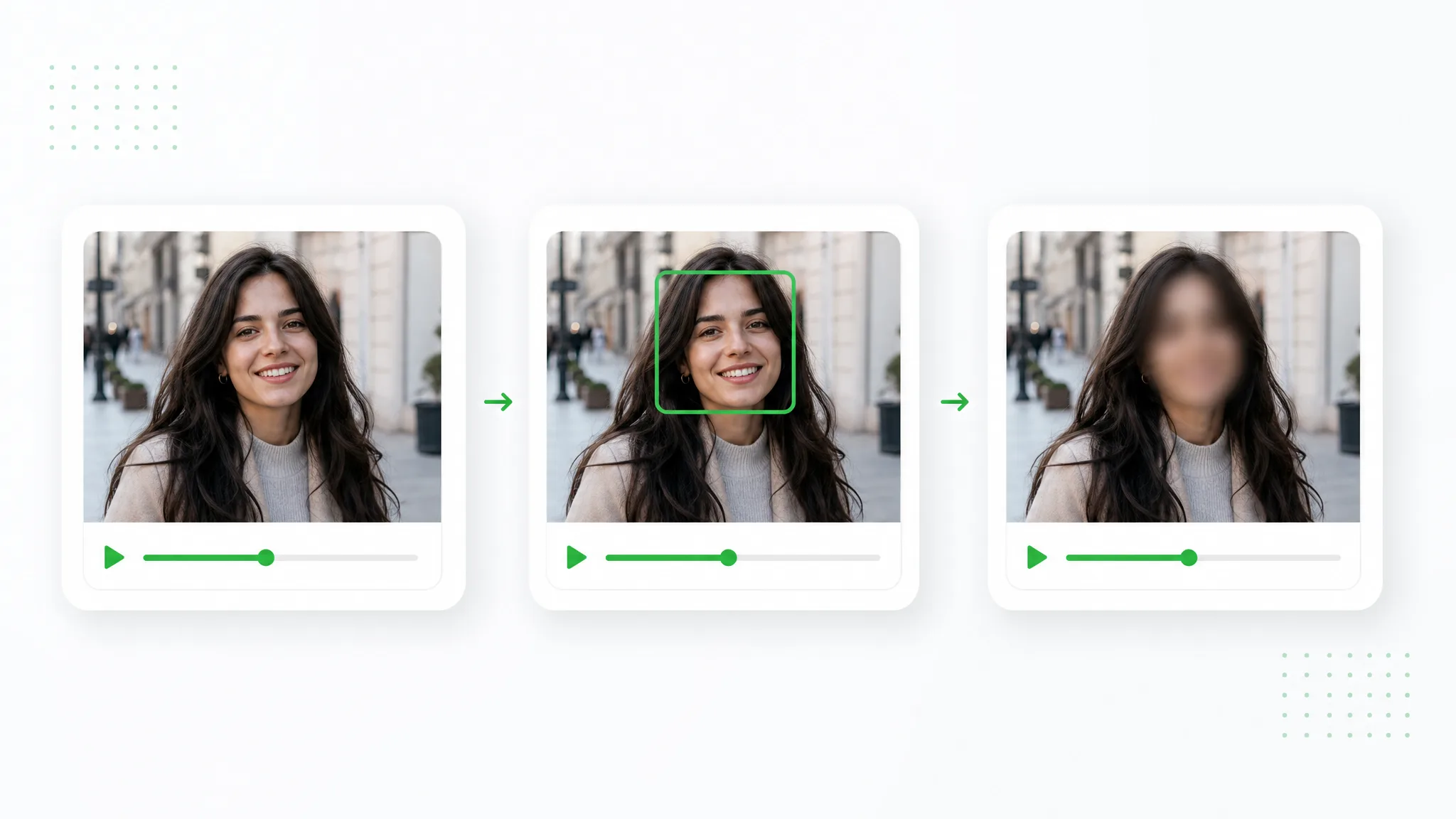
You can blur faces in video here in three steps: open the clip, box each face with its own style and time range, then export the MP4 and watch it before you share it.

Three video frames of a smiling woman on a city street: unedited, a green box drawn on her face, then her face blurred.
  1. 1

    Open your recording in the browser

    Choose an MP4, MOV or WebM file up to 100 MB from your computer, and Blur Face in Video reads it straight from your device, so the recording stays local the whole time. Processing runs on WebCodecs, which the latest Chrome and Edge provide.

  2. 2

    Draw a box over each face

    Pause where a face first appears and drag a box over it. For each box, choose Blur or Pixelate, set a strength between 10 and 100, then press Start here and End here to set that stretch as its range, or keep Whole clip. When the person shifts to a new spot, draw another box there.

  3. 3

    Export the MP4 and watch it through

    Press Blur & Export and Blur Face in Video renders an H.264 MP4 at the original resolution, with the original audio track copied across. The finished video plays right on the page: watch it at normal speed, pause wherever someone turns or walks, and add a box for any moment a face slips out before you download.

Project ideas

Where Blur Face in Video Helps Before You Publish

These four projects show where Blur Face in Video fits: footage where you already know which faces to hide, from a steady interview camera to people passing through.

Street scenes and city footage

A street shot often catches a few passersby close to the lens. Use Blur Face in Video to box the faces near the camera that are clear enough to recognize, give each box the seconds that person is in view, and export the MP4 for a travel reel or a local news piece. Short clips with a handful of nearby faces suit this approach best.

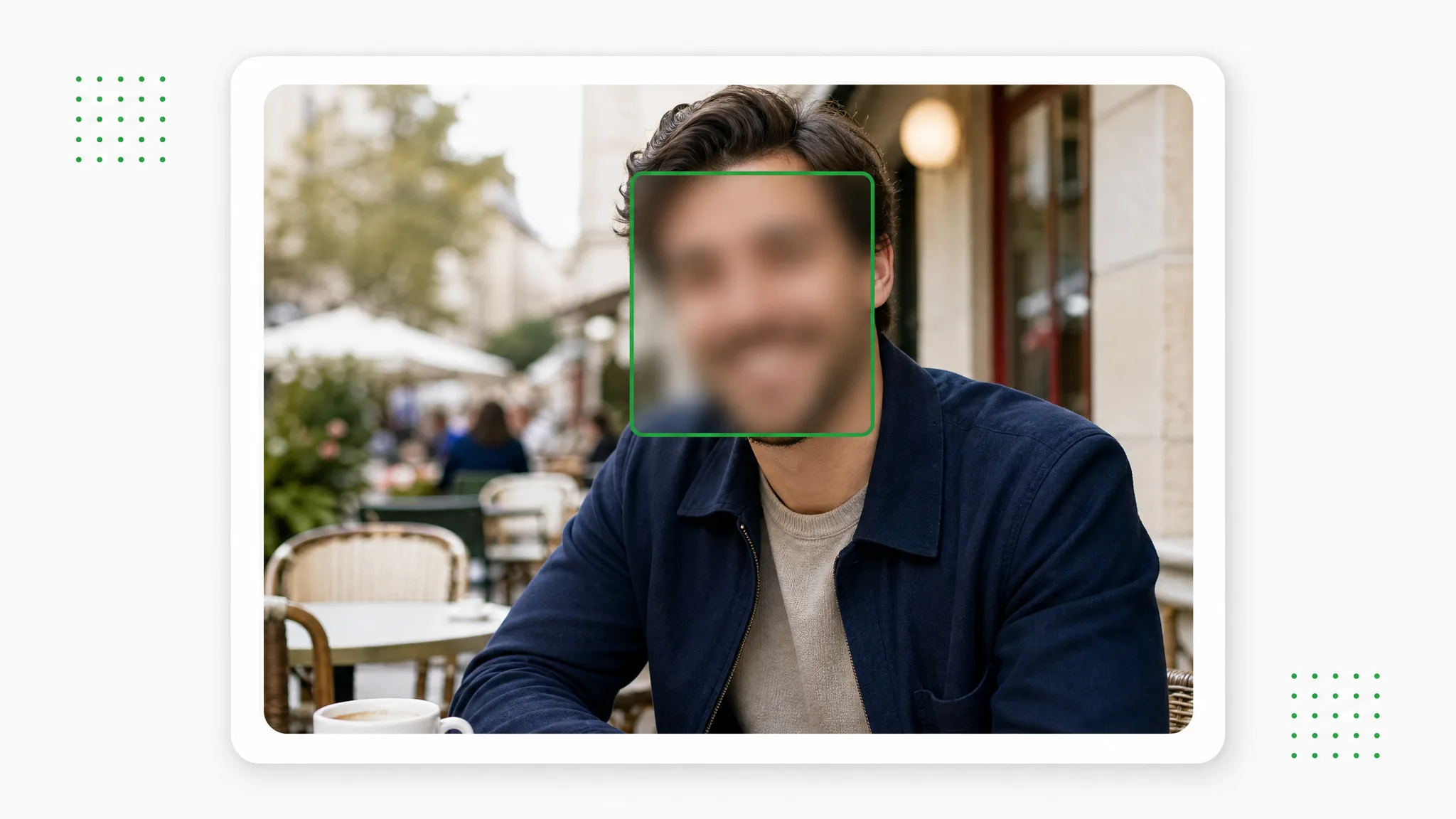
A sidewalk scene where two passersby close to the camera have blurred faces in green boxes while a woman walks clear.

Interviews with someone in the background

A sit-down interview usually comes from a fixed camera, which suits fixed boxes well. Keep the interviewee clear and box the colleague or visitor sitting behind them for the whole clip. Because Blur Face in Video copies the original audio, every answer reaches the documentary or company video unchanged.

A woman speaking to the camera on a sofa while a colleague sits out of focus in the background.

Classroom and school recordings

Teachers filming a lesson for parents or a training portfolio can keep the front of the room visible and box the students whose families have not given permission. Students rarely change seats mid-lesson, so with Blur Face in Video one box per student often covers the full recording, processed on the school laptop.

A classroom filmed from the back of the room, with a green box around the head of a boy seated on the right.

Vlogs with people walking past

When a stranger strolls behind you mid-sentence, box their face for the seconds they are on screen, using Start here and End here. Your own face stays sharp for the vlog, and a second short box picks the stranger up again if they cross back the other way.

A woman filming a selfie vlog on a city sidewalk as a man walks past behind her with his face blurred.

Creator stories & examples

Blur Face in Video Stories from Everyday Projects

“Our back-to-school night recap showed the choir from a camera on a tripod, and four families had not signed the photo form. I opened the clip in the Blur Face in Video tool, boxed those four children for the whole clip and set Pixelate to 70. The exported MP4 kept the singing, so it went straight onto the school page.”
Kwame OseiElementary School Media Coordinator

Questions and answers

Blur Face in Video FAQ

Short answers for anyone about to blur faces in video: what the page does, one face or many, cost, iPhone recordings, editing apps and people who move.

Blur Face in Video hides the faces you choose in a recording, using boxes you draw yourself. Each box is blurred or pixelated for the whole clip or for a time range, and the finished file is an MP4. Faces are not detected automatically, so you decide exactly who is covered and who stays visible.

Reviewed by RemoveVideoBG TeamUpdated

Blur Face in Video on Your Next Clip

Open the recording, draw a box over each face you want hidden and set when each box applies. Then export: Blur Face in Video saves an MP4 at the original resolution with the soundtrack in place, ready for your channel, class page or report.

Open Your Video