Green Screen Remover for Video

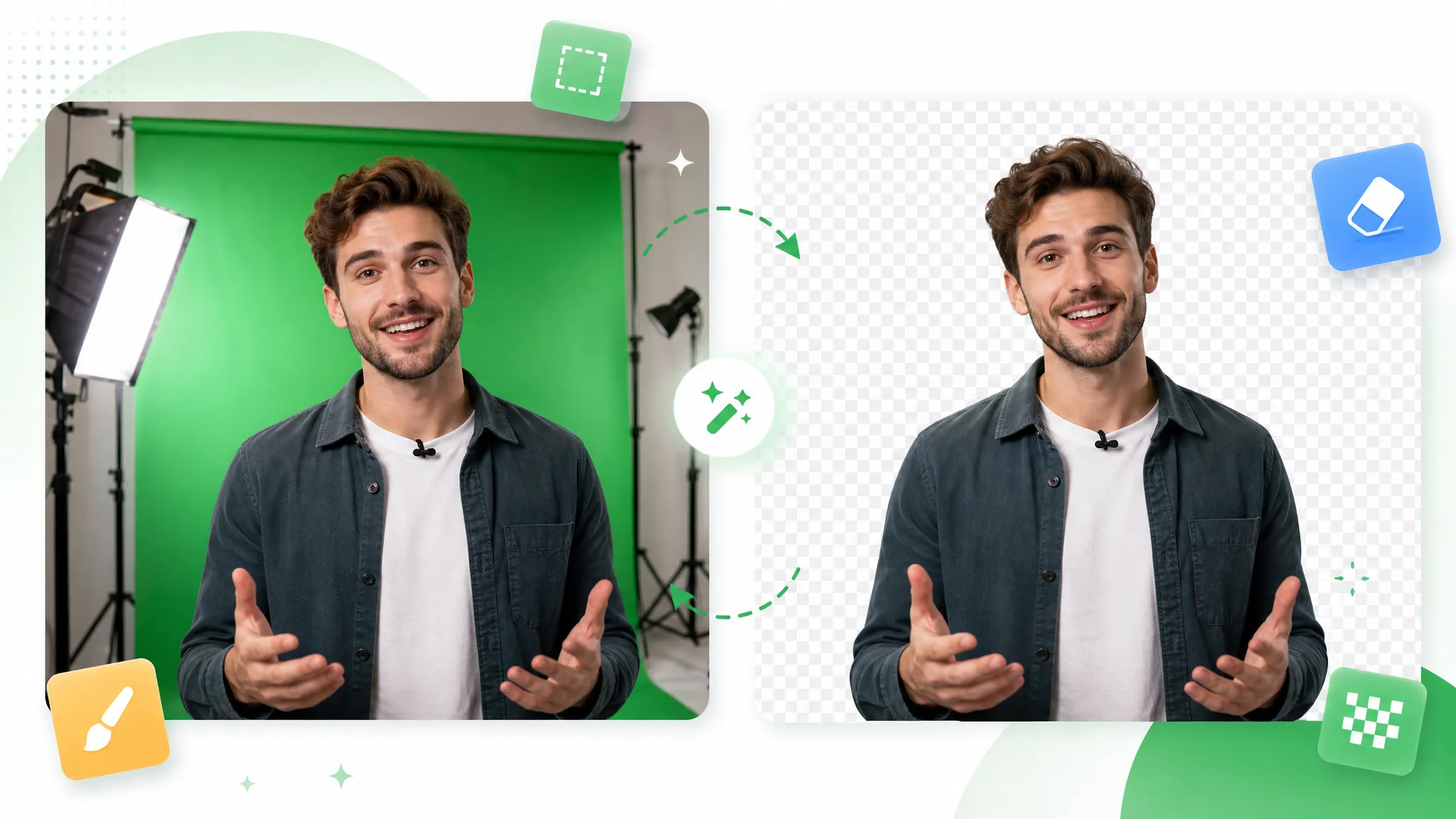
RemoveVideoBG's AI separates the subject from the green backdrop in your video, so there is no key color to pick. Download a transparent WebM, or a solid-color MP4 or MOV with the backdrop built in.

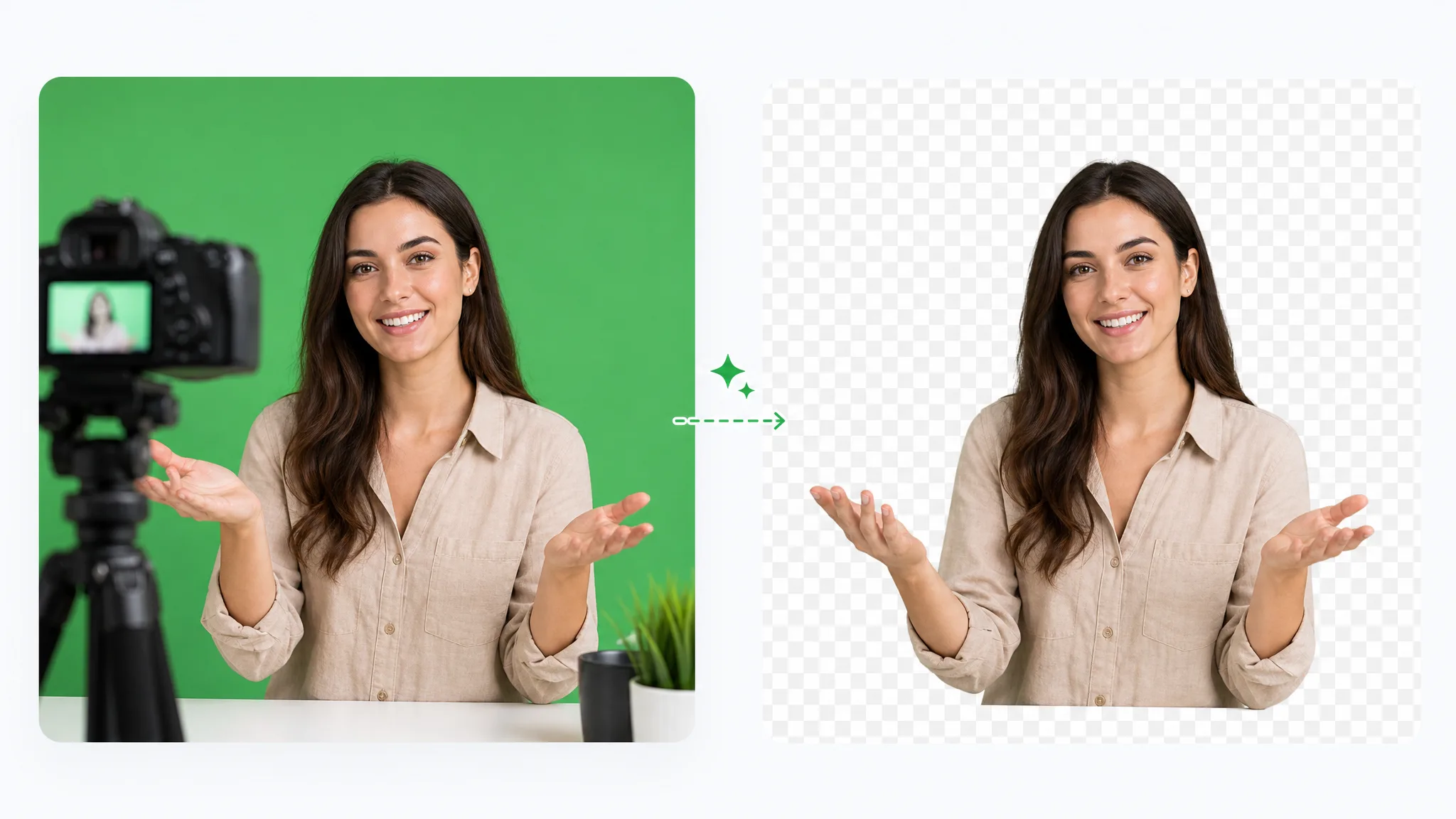
A smiling woman with open hands talks to a tripod camera before a green backdrop, her cutout on a checkerboard at right.
or drop a file hereMP4, MOV, WebM · Max 60s · up to 4K · 100MB
No video? Try one of these:
Free to try
  • No watermark
  • Transparent WebM export

Before and after

Green screen remover before and after on sample clips

The green backdrop goes and the subject stays in these sample clips of a webcam presenter, a game character, action footage and a VFX element. Drag each slider to compare the original shot with the green screen remover result.

BeforeAfter

Webcam on green screen

A presenter talking to camera, on green and then transparent.

BeforeAfter

Presenter on green screen

A host holding a product box, on green and then transparent.

BeforeAfter

Game character on green screen

An armored game character, on green and then transparent.

BeforeAfter

Action footage off green

A surfer on a board, on green and then transparent.

BeforeAfter

Animated character off green

A stylized animated character waving, on green and then transparent.

BeforeAfter

VFX shot off green

A CGI spaceship in flight, on green and then transparent.

Creative possibilities

Use a green screen remover to put one shoot into many scenes

One recorded shoot can become a subject for many scenes with a green screen remover. RemoveVideoBG's AI picks out the person, product or character, and you choose a transparent layer, a solid color or your own image behind it.

A subject layer without a key color

Upload a recording shot against green and the green screen remover finds the presenter, product or character for you. No key color is needed, so you go from recording to a cutout without picking a color. Download the result and the layer is ready for the edit.

Create a Transparent Clip
In a video player, a woman in a black shirt is on a green backdrop at left and alone on a checkerboard at right.

A transparent WebM for your next composition

Your transparent WebM carries a real alpha channel, so you can place that green screen cutout over slides, gameplay footage or a web page; a presenter can stand beside a chart while the original recording stays untouched. Because alpha stores how see-through each pixel is, the subject sits cleanly over a slide, a scene or a page.

Use Your Own Footage
Hair flying as she turns, a smiling woman is shown on green and again on a checkerboard with loose strands intact.

A solid color or your own image behind the subject

When the background should live inside the file, choose one of 9 preset colors and download an MP4 or ProRes MOV, or upload an image and download an MP4 with the subject placed over it. Your green screen remover output then arrives with a plain color or a campaign picture already in place.

Cut Out Your Brand Video
A presenter in a white blouse on green, then in a bright room with a plant.

Solid-color exports keep the original audio

A talking-head clip should keep its voice. MP4 and MOV exports on a solid color carry the original audio, so the speaker leaves the green screen remover with the sound intact and ready for titles. Choose the image-background MP4 when you plan a soundtrack of your own.

Start With One Clip
A streamer in headphones laughs on green and over dark game footage.

Three steps

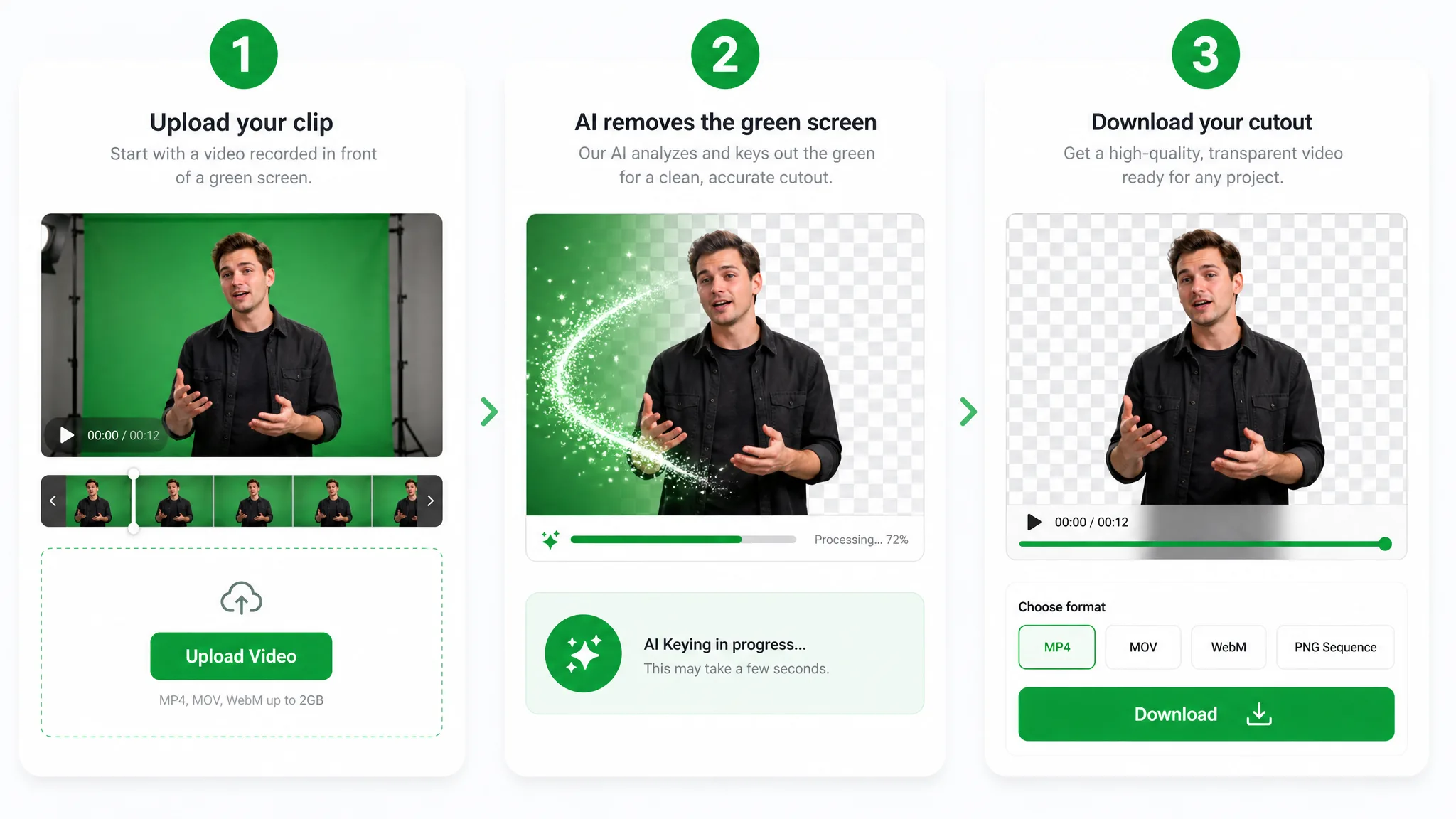
How to use a green screen remover on a video clip

To remove green screen from video, upload the clip, pick a background and start the green screen remover. Preview the result, then download the file that fits your project.

Three panels: a man on green is uploaded, sparkles sweep the green away, then his cutout appears above a Download button.
  1. 1

    Upload the green-screen video

    Pick a green-screen recording in MP4, MOV or WebM format, up to 100 MB, or start from one of the sample clips. Choose the part of the shoot where the presenter, character or product is on screen for the whole action you want in the new scene.

  2. 2

    Choose a background and start processing

    Select a transparent background for a WebM layer, one of 9 preset colors for an MP4 or MOV, or your own image for an MP4. Your clip's credit quote appears before anything is processed, and once you start, the green screen remover does the cutting in the cloud while a progress screen keeps you posted.

  3. 3

    Check the edges and download the result

    Play the processed WebM or MP4 and watch the edges around hair, hands and fast movement, then scrub through the whole clip. Download the file that fits your next step: the transparent WebM as a layer, or the MP4 or MOV with its backdrop built in. A ProRes MOV opens in your editor or player. Run the next clip through the green screen remover the same way.

Project ideas

Where a green screen remover fits your next project

Every recorded shot can end up somewhere new with a green screen remover. These four projects show where a cutout from green-screen video goes, from a stream overlay to a product ad.

Stream intros and facecam overlays

Record a facecam against green, process it with the green screen remover and download the transparent WebM. Place it over gameplay in a video editor, then arrange the channel graphics around the speaker for an intro, a highlight reel or a channel trailer.

Cheering with both fists up, a man in a gaming headset and chair sits before a green curtain, then alone on a checkerboard.

Characters and animated shots

A stylized character or CGI element rendered against green becomes a separate layer for a title sequence, a project page or a short scene. Prepare the shot here, then build the surroundings in your usual editing workflow and decide what appears behind the character.

A bearded man in a black hoodie and earbuds looks shocked on green, then is cut out beside a dragon facing a warrior.

Lessons and presenter videos

A teacher or host recorded in front of a green backdrop can stand beside slides, diagrams or a worked example. Remove the green screen once with the green screen remover, then reuse the presenter layer across the lessons of a course while the teaching material changes.

On a lit green set, a presenter in a black blouse and beige trousers talks, then stands in a news studio with city windows.

Product demonstrations and ads

Film a product demonstration against green, then download an MP4 on a plain color, or upload a campaign image and download an MP4 with the demonstration placed over it. The green screen remover turns one recording into several store or launch versions.

Holding up a black bottle, a woman speaks on green, then in a bright room with a potted plant and a wooden cabinet.

Creator stories & examples

How makers use a green screen remover on recorded video

“Our channel intro had been a facecam boxed into one corner for years. I filmed myself against a green sheet, ran the clip through the green screen remover and downloaded the transparent WebM. Dropped over the gameplay, my headset and wave sat right on the footage with the sheet gone, and the new intro felt like ours.”
Marcus ElleryLive Stream Producer

Questions

Green screen remover FAQ

Answers to the questions people ask before they use a green screen remover on a video: what the tool does, which files go in and out, and what to check in the result.

A green screen remover takes the green backdrop out of a recording and leaves the subject on its own. RemoveVideoBG does this with AI for a video you upload, so the presenter, product or character can move into a new scene as a transparent layer or in front of a solid color or an image of your own.

Reviewed by RemoveVideoBG TeamUpdated

Try the green screen remover on your next video

Bring a recorded green-screen shot and let the green screen remover separate the subject. Save the transparent WebM to layer, or a solid-color MP4 or MOV with the backdrop already in place.

Upload Your Green-Screen Video